Once you sign in, click Design in the sidebar to open the page editor. The editor has three areas: your page's content on the left, a live preview in the center, and the Design panel with styles on the right.
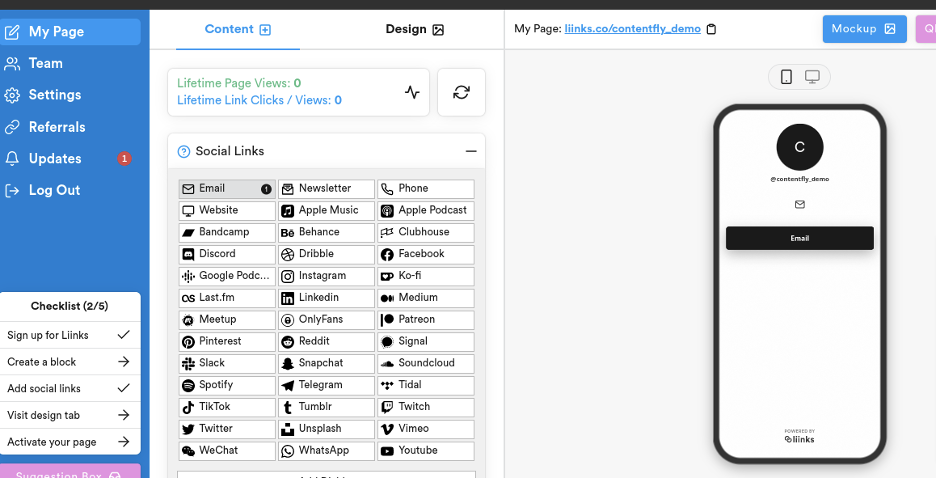
Add your header and socials
At the top of the left panel:
- Header — add your name, bio, and profile picture.
- Socials — add your social profiles from dozens of platforms. You can paste a full URL or just enter your username, and Liinks will build the correct link. These appear as a row of icons near the top of your page.
Every change shows up instantly in the live preview.
Add blocks
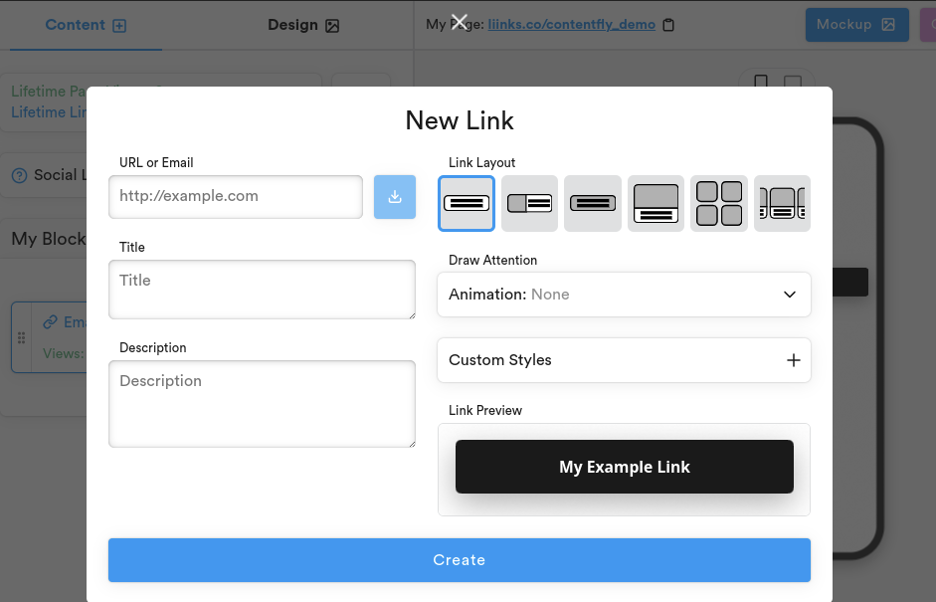
Your content lives in blocks. In the Blocks section, click Add + to open the block picker, or paste a URL straight into the Paste a link or search... field to create a link block instantly.
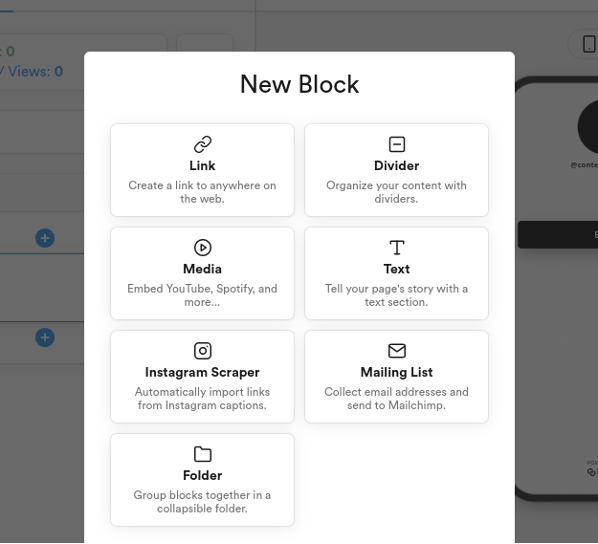
The picker organizes everything by category: buttons, media embeds (YouTube, Spotify, and more), text sections, forms, FAQ, and layout blocks like dividers and folders. Add as many or as few blocks as you like, and drag them to reorder. For the full list, see Block types.
Design your page
The Design panel on the right styles your entire page. Start with Templates to pick a preset theme, then fine-tune fonts, colors, backgrounds, and block styles to make it yours.
See Design options for a tour of every setting.
Go live
You can build and refine your page for as long as you like, free. When you're ready for the world to see it, subscribe to make your page live — every new subscription starts with a 14-day free trial, so you can cancel within the trial without being charged. See What plans are available?.
Once live, share your URL (liinks.co/yourusername) anywhere: How do I get people to see my page?