Every time someone subscribes or fills out one of your forms, they are added to your Audience. The Audience page is your home for everyone who has engaged with your page, where they came from, and what they have submitted.
Where to find your audience
Click Audience in the left sidebar of your admin dashboard, in the Grow section (between Analytics and Forms).
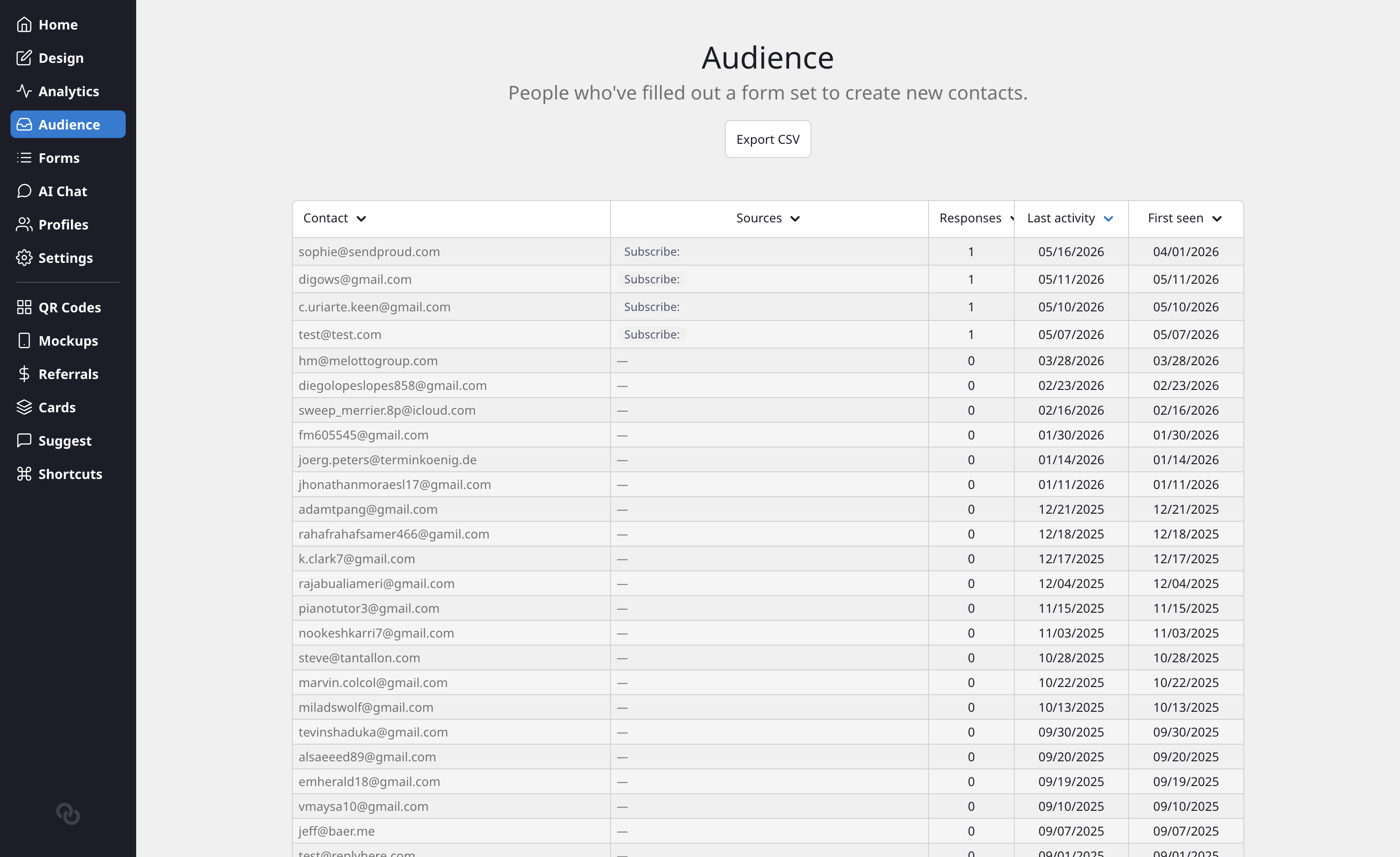
The Audience list shows each contact in a single column combining their name and email, alongside:
- Sources — which forms or blocks they came through
- Responses — how many submissions they have made
- Last activity — when they last engaged
- Created — when they first joined your audience
Click any column heading to sort the list.
View a contact
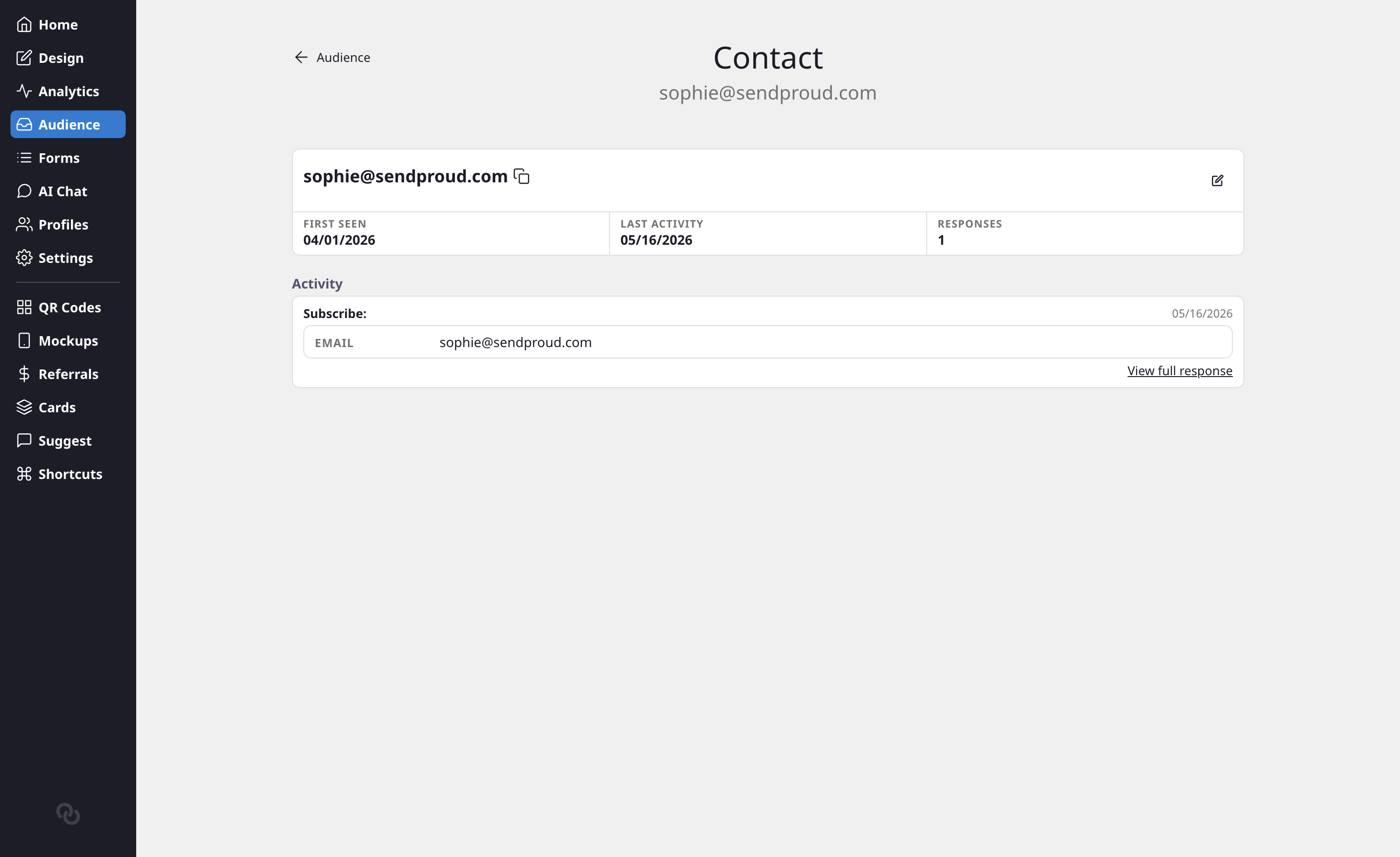
Click any contact to open their detail page. Here you can see:
- Their name and email, with a copy icon next to each so you can grab them in one click
- First seen, last activity, and total response count
- An Activity section listing every form they have submitted, with the answers shown inline. The most recent response is expanded automatically, and each row has a View full response link for the complete submission.
If a contact has not submitted anything yet, you will see a short empty state instead of the activity list.
Edit a contact
Need to fix a typo or update someone's details? Click the edit icon on the contact page to switch to edit mode, where you can update the first name, last name, and email. Click Save to apply your changes or Cancel to discard them.
Where this connects
Anyone who submits a form with Collect subscribers turned on lands here automatically. To start collecting sign-ups, see How to Collect Email Signups. You can still sync subscribers to Mailchimp if you prefer to manage your list there.