Liinks supports several ways to add rich visual content to your page beyond simple text links.
Thumbnail images on links
Add images to your link blocks by choosing a thumbnail layout. Available layouts include:
- Thumbnail Basic — A small image next to your link title.
- Thumbnail Highlight — A larger, more prominent image display.
- Grid (2-column) — Display links in a 2-column image grid.
- Grid (3-column) — Display links in a 3-column image grid.
- Carousel — A horizontal scrolling set of image cards. See Creating a carousel.
- Background Image — Use an image as the background of your link button.
To add an image, select any thumbnail layout when creating or editing a link, then upload your image.
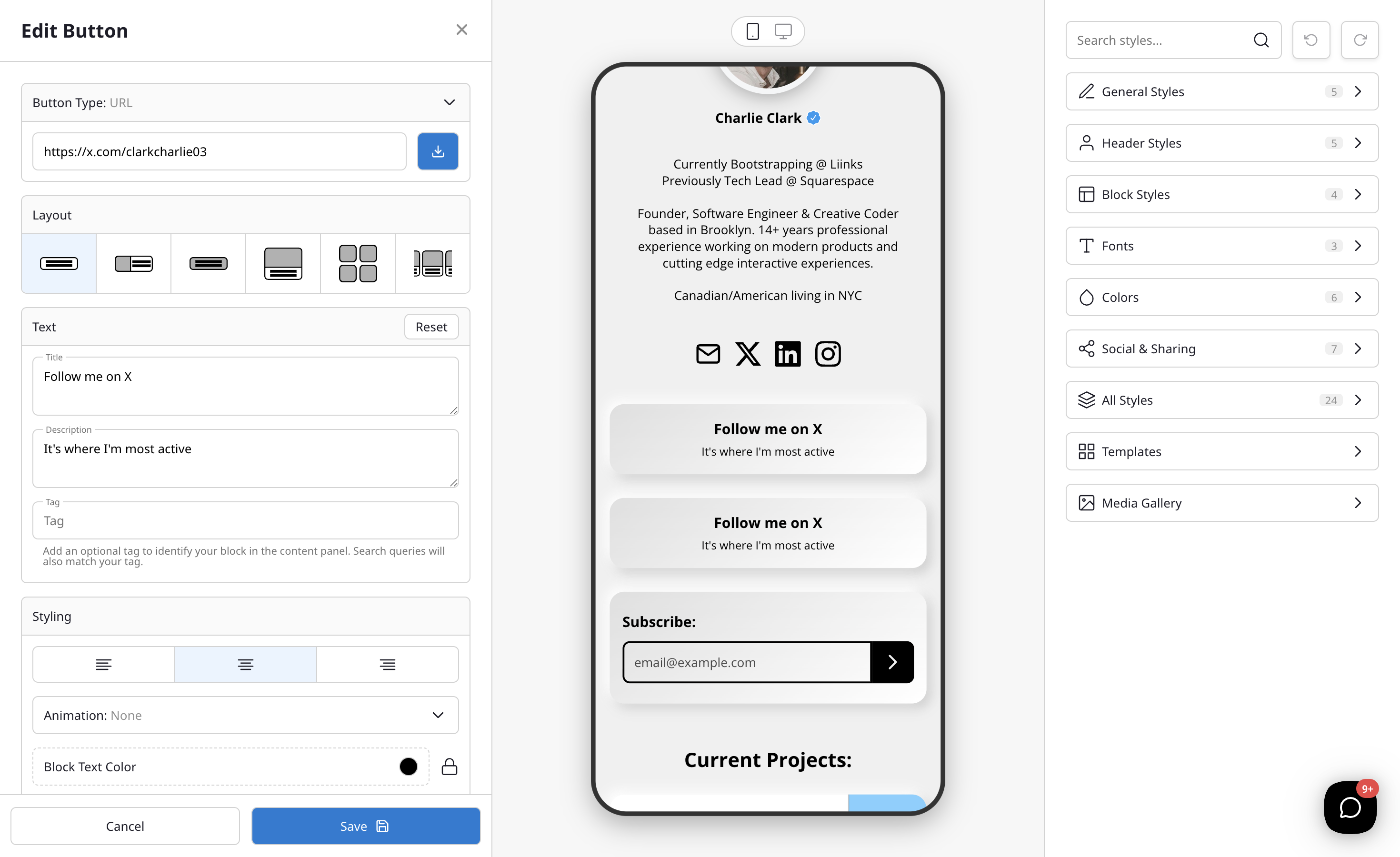
Image links
Image links open an uploaded image in a fullscreen lightbox when clicked. This is great for showcasing artwork, photography, or product images.
Two options in the block editor's Image section control how the image behaves:
- Full bleed — Extends the image to the horizontal edges of your profile and drops the card border for a clean, edge-to-edge look.
- Disable click — Turns off the lightbox so the image is purely decorative and not clickable.
File links
Upload and share files directly from your page. Supported file types include PDFs, images, and audio files. When visitors click a file link, the file opens or downloads in their browser.
Media embeds
Embed audio and video content from platforms like YouTube, Spotify, Vimeo, and more. See Embedding content for the full list of supported platforms and setup instructions.
Text blocks
Add formatted text sections to your page with headings, bold/italic styling, lists, and links. Text blocks are great for bios, announcements, or detailed descriptions.