When a link uses a thumbnail or image layout, you can decide what shows in its image spot. Instead of uploading a picture, you can drop in a flat icon, an emoji, or one of the new 3D icons from the built-in library.
Where to find it
Open any link in the block editor and pick a layout that shows an image (any of the Thumbnail layouts, or the image-background button). Just below the layout options you'll see a row of choices:
- Image — Upload your own image, pick one from your Media Gallery, generate one with AI, or drop in a 3D icon as the image.
- Icon — Choose a flat icon and set its background and color.
- Emoji — Pick any emoji and set a background behind it.
- 3D — Choose a 3D icon from the built-in library and set a background behind it.
Switching between these swaps what appears next to your link. Only one is shown at a time.
Using 3D icons
3D icons are a set of playful, rendered icons that add depth and personality to your links, no design work required.
- In the block editor, select the 3D option in the imagery row.
- The picker opens with a grid of icons. Browse by tapping a category chip, or type in the search box to search across the full library of thousands of icons.
- Click an icon to use it. Your link preview updates right away.
- Optionally, set a Background color behind the icon so it stands out against your page.
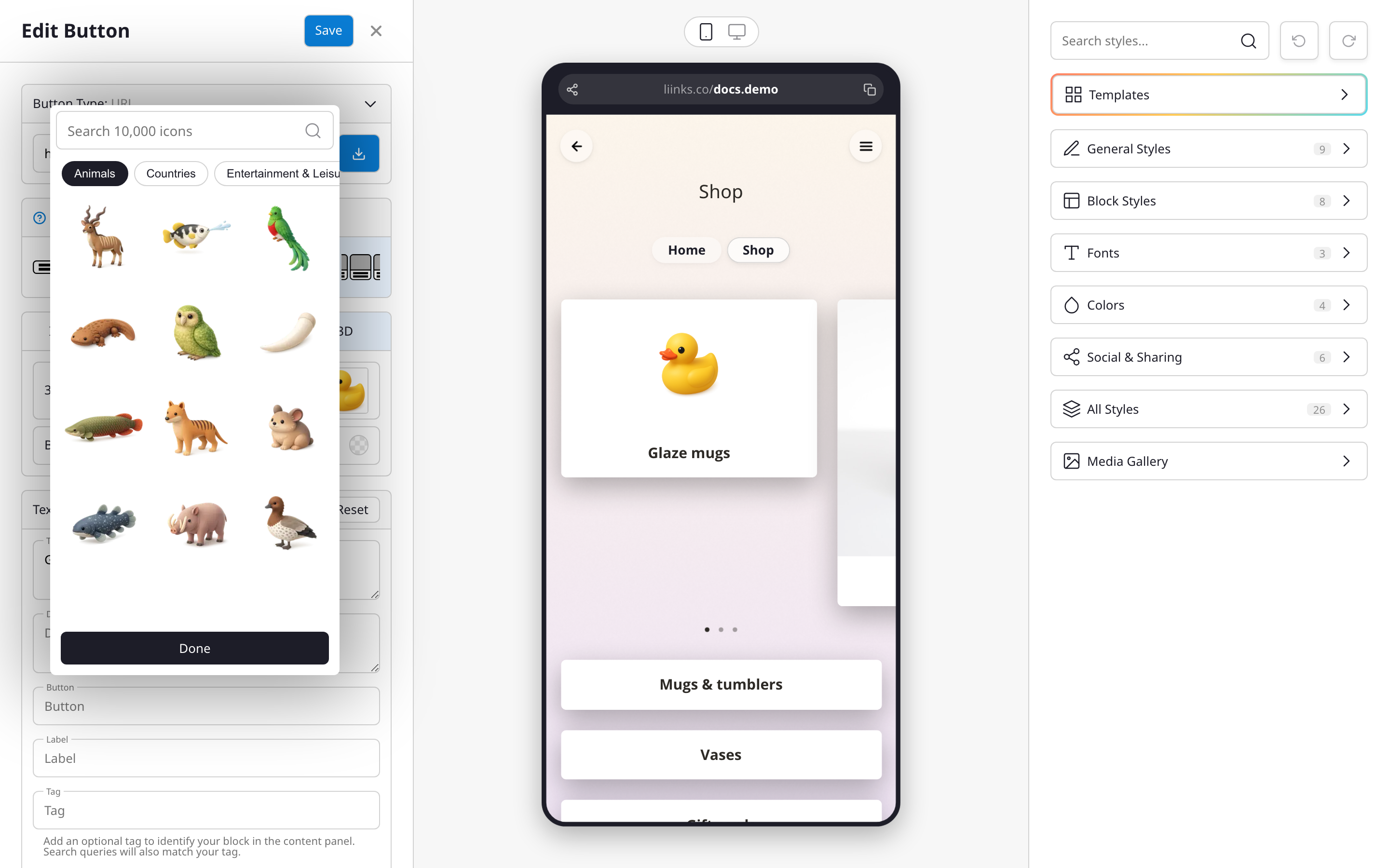
That's it. The icon is saved to your link and matches the rest of your page design.
Two ways to add a 3D icon
There are two spots where a 3D icon can go, and they look a little different:
- The 3D option (above) keeps the icon as an icon: it sits on a background color you choose, with room around it. Best when you want a clean, badge-like look.
- A 3D icon as the image: under the Image option, choose 3D icon to pick from the same library. The icon is added as a regular thumbnail image, so it fills the image spot edge to edge like an uploaded picture would.
Pick whichever framing suits your layout. You can switch between them at any time.
Tips
- 3D icons work best on the thumbnail and grid layouts, where the icon has room to breathe.
- Use a background color that contrasts with your page so the icon pops.
- Mixing a few 3D icons across a set of links gives your page a consistent, polished look. Pick icons from the same category to keep the style cohesive.
Want to add an image instead? See Generate images with AI and Block types for more on customizing links.