Don't have the right image on hand? You can generate one with AI directly in the editor. Anywhere you'd normally upload an image, you'll find a Generate with AI option alongside the usual upload and gallery choices.
You can generate images for your:
- Profile picture — in the Header section of the Content tab.
- Page background — in General Styles on the Styles tab, when your background type is set to Image.
- Link thumbnails — in the imagery options when you add or edit a link.
How to generate an image
- Open the image field you want to fill (profile picture, background, or a link thumbnail).
- Click Generate with AI.
- Describe the image you want in plain language, for example "a soft pastel gradient" or "a minimal coffee cup icon."
- Pick a style: Photo, Illustration, Abstract, Logo, or Other.
- Click Generate and wait a moment for your options to appear.
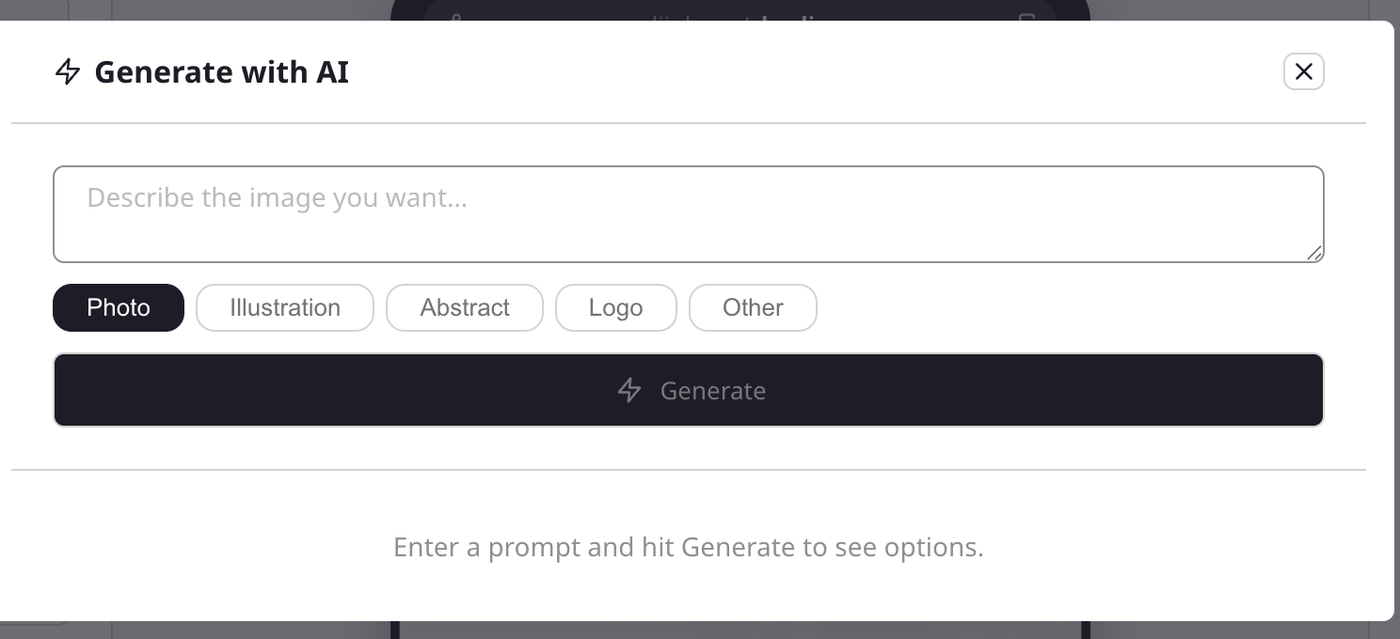
A set of options will appear as thumbnails. Click the one you like best and it's applied to your page right away. If none feel right, tweak your description or pick a different style and hit Generate again for a fresh set.
Good to know
- Everything stays editable. A generated image behaves exactly like one you upload, so it's added to your Media Gallery and you can swap or remove it later.
- Logos are symbols, not words. AI can't reliably spell out text, so a logo comes out as an iconic mark rather than your business name in letters. Add a text block with your name separately if you need it.
- Daily limit. You can generate up to 30 images per day. If you hit the limit, it resets the next day.
- Not every prompt works. Some descriptions get filtered out. If nothing usable comes back, try describing something different.
Prefer to have it all done for you? When you build your page with Liinksy, our AI assistant, you can simply ask him to create images as you chat. See Building your page with Liinksy.