The Testimonials block lets you display quotes from customers, clients, or collaborators directly on your Liinks page — a fast way to add social proof without linking out to an external reviews site. Each testimonial can include a name, company or role, the quote itself, an optional avatar image, and an optional link to the original review.
How to add a Testimonials block
- Click the Add + button above your blocks list in the profile editor.
- In the Content section of the Add Block modal, select Testimonials.
- The Testimonials editor opens on the side where you can add your quotes.
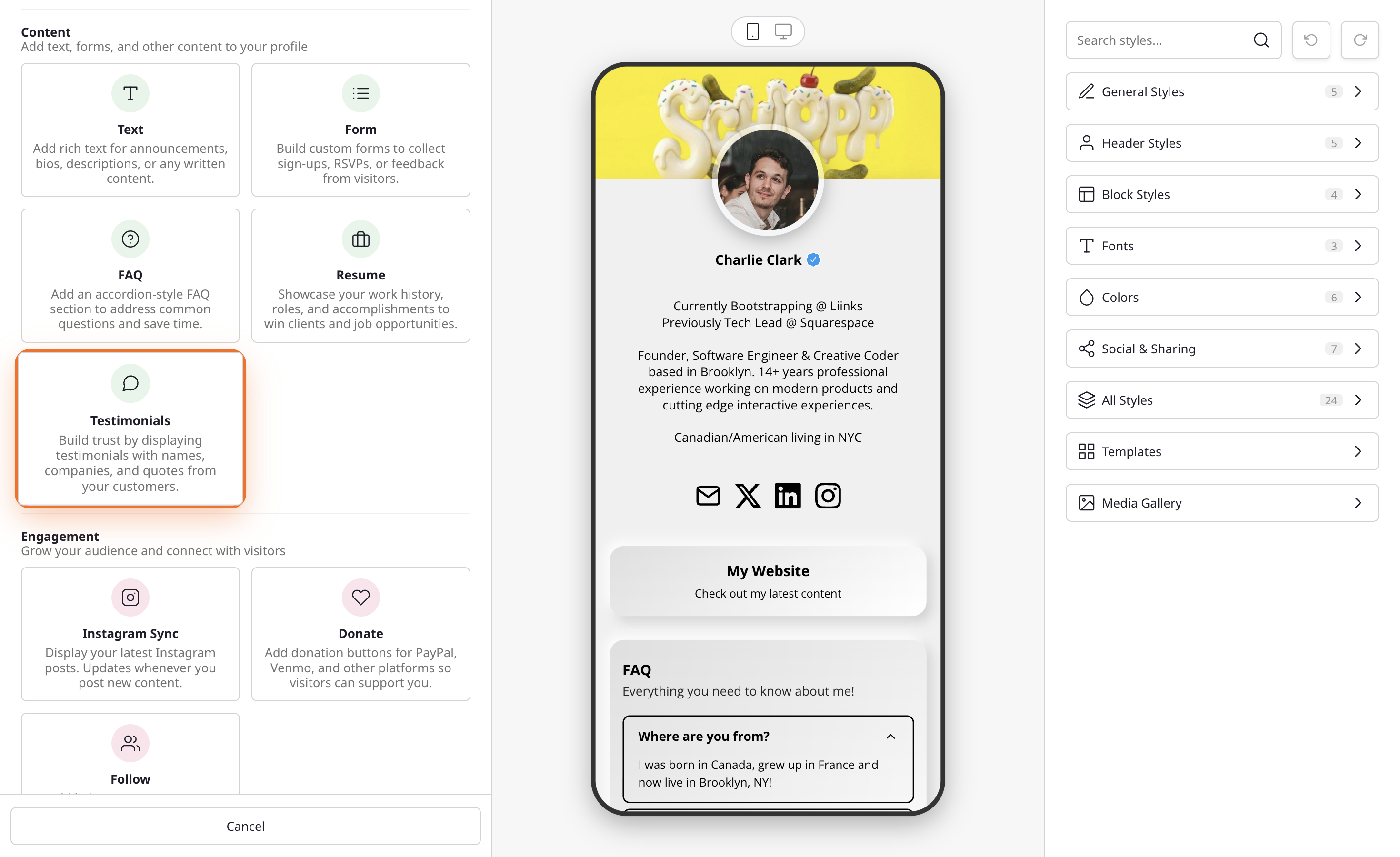
Adding testimonials
Under the Testimonials section of the editor, each entry has the following fields:
- Avatar (optional) — Upload a headshot or company logo, or pick one from your Media Gallery. Leave blank and visitors will see a neutral placeholder icon.
- Name — Who said the quote, e.g. "Maya Chen".
- Company / Role — Their title and company, e.g. "Head of Design, Northwind".
- Quote — The testimonial itself. Keep it to one or two short sentences so the card stays scannable.
- URL (optional) — A link to the original review (a LinkedIn post, App Store review, etc.). If you add one, the whole testimonial becomes clickable.
Click + Add Testimonial at the bottom of the list to add another entry. You can drag entries up and down by their handle to reorder them, or click the trash icon to remove one.
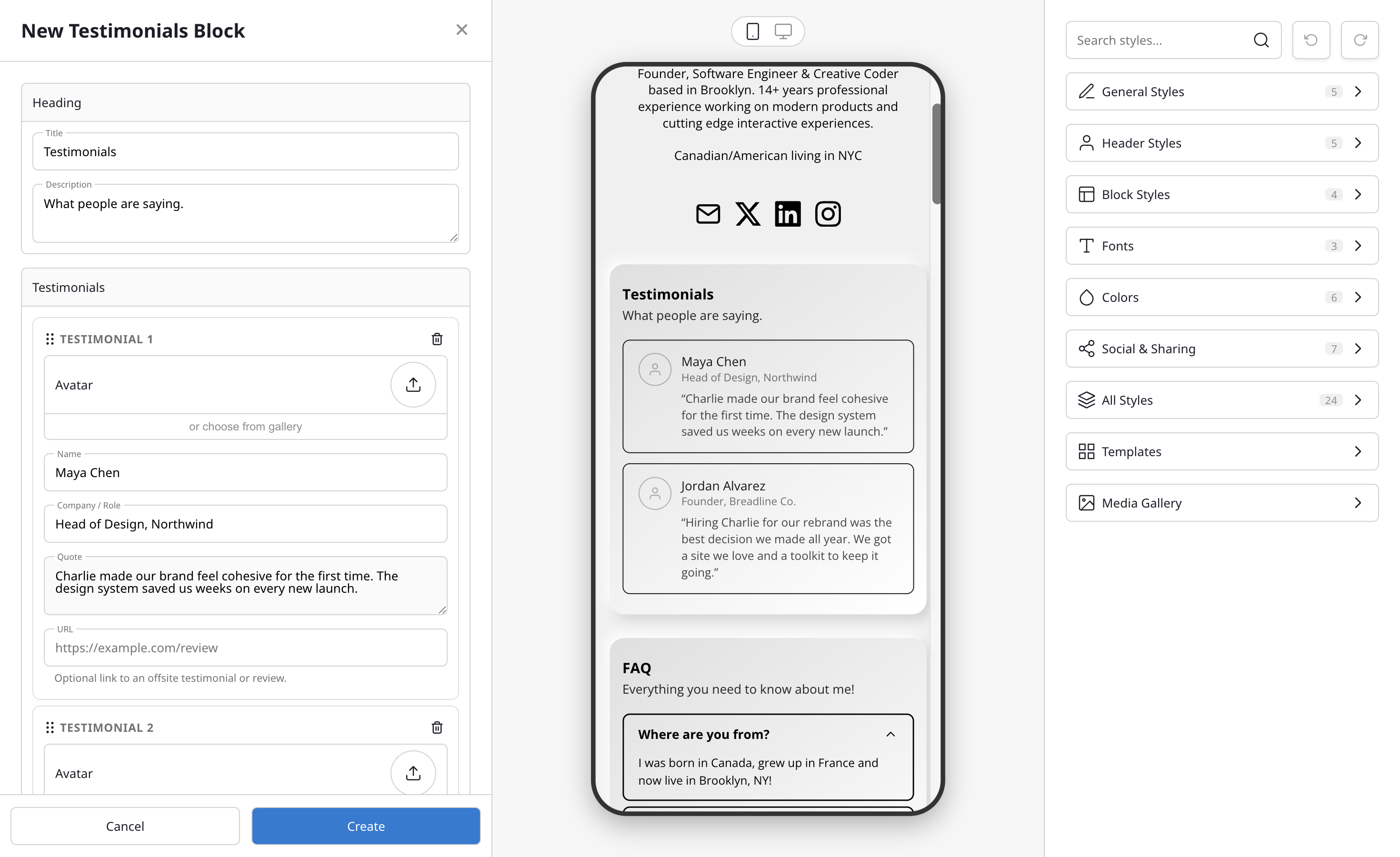
The preview panel updates as you type, so you can see exactly how each quote will render before saving.
Customizing the heading
Under the Heading section at the top of the editor, you can set:
- Title — The heading displayed above your testimonials (defaults to "Testimonials").
- Description — Optional supporting text below the title, such as "What people are saying."
Leave both blank if you'd rather let the quotes speak for themselves without a heading.
How it looks for visitors
On your public page, the Testimonials block appears as a stack of cards that inherit your page's colors, borders, and fonts — each card shows the avatar, name, and company at the top, with the quote underneath. Cards with a URL become clickable, opening the linked review in a new tab.
Tips for a great testimonials block
- Lead with your strongest, most specific quote — vague praise doesn't build trust.
- Include both the person's name and their company or title so visitors can place the quote in context.
- Mix short punchy quotes with slightly longer ones so the block has rhythm.
- Ask customers for permission before adding their quote, especially if you're including a photo.
- Pair the Testimonials block with a Resume block for a full "work + proof" story on your page.