The Resume block lets you display your work history on your Liinks page — perfect if you're a freelancer, consultant, or job seeker who wants to make it easy for visitors to see your experience at a glance. Each entry includes a role, company, date range, and optional description, and entries appear in a styled card that matches your page design.
How to add a Resume block
- Click the Add + button above your blocks list in the profile editor.
- In the Content section of the Add Block modal, select Resume.
- The Resume editor opens on the side where you can fill in your experience.
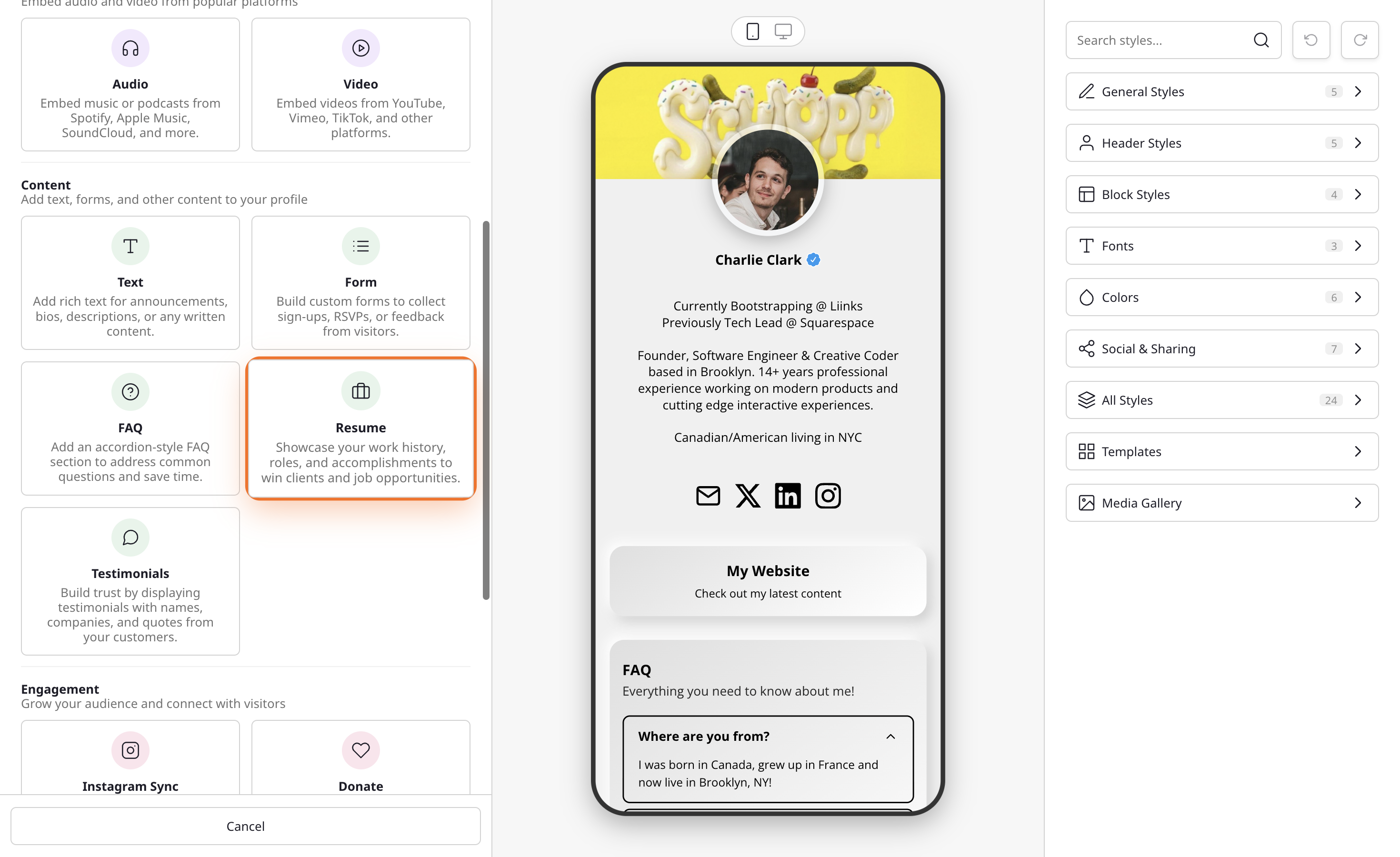
Adding your experience
Under the Experience section of the editor, you can add one or more entries. Each entry has the following fields:
- Position or Role — Your job title, e.g. "Senior Designer".
- Company Name — The name of the company or organization.
- Company URL (optional) — A link to the company. If you add one, the company name becomes clickable on your public page.
- Start Month and Start Year — When you began the role.
- End Month and End Year — When the role ended. Leave blank and tick I currently work here if you're still in the position — the date range will show as "Present".
- Description (optional) — A short sentence about what you did in the role.
Click + Add Experience at the bottom of the list to add another entry. You can drag entries up and down by their handle to reorder them, or click the trash icon to remove one.
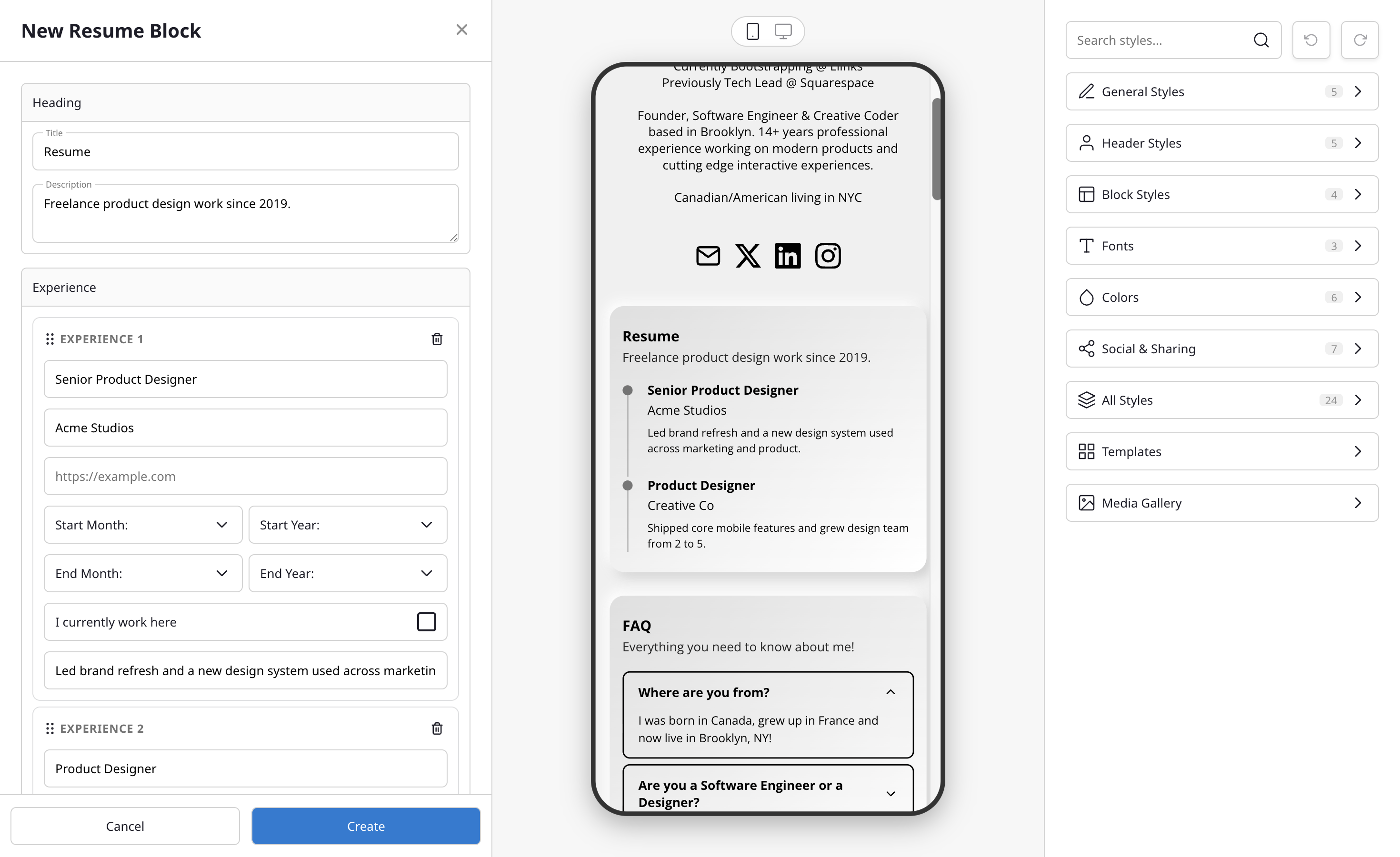
The preview panel next to the editor updates as you fill in each field, so you can see exactly how your block will look on your public page before saving.
Customizing the heading
Under the Heading section at the top of the editor, you can set:
- Title — The heading displayed above your experience list (defaults to "Resume").
- Description — Optional text below the title for extra context, such as "Freelance design work since 2019."
Leave both blank if you just want the experience entries to stand on their own.
How it looks for visitors
On your public page, the Resume block appears as a single card that matches the style of your other blocks — the same colors, borders, and fonts as the rest of your page design. Each experience entry shows the date range, role, and company stacked together, with descriptions appearing underneath where you've added them. Entries where you've ticked I currently work here display "Present" in place of the end date.
If you added a company URL, visitors can tap the company name to open it in a new tab without leaving your page.
Tips for a great resume block
- Lead with your most recent or most impressive role — visitors scan top-down.
- Keep role titles short and specific so they're easy to scan on mobile.
- Use the description field sparingly — one sentence of context is usually enough. Save the long form for an attached file or external portfolio link.
- Pair the Resume block with a File block that links to a downloadable PDF of your full CV for visitors who want more detail.