Create customizable QR codes that link to your Liinks profile or any external URL. QR codes are great for print materials, business cards, event signage, and more. Every code you make is designed in QR Studio, a live-preview editor with presets, brand colors, logos, and frames, plus a built-in scannability check so you never print a code that won't scan.
How to create a QR code
- Go to the QR Codes tab in your admin dashboard.
- Click Create QR Code and choose the type of code: Dynamic (tracked and editable) or Static (fixed forever). See Tracking: static vs. dynamic codes below for the difference. Your new code opens straight in QR Studio.
- Set where the code should point (see Destination below), give it a name, then design it however you like.
- Click Export to download it, or just leave it. Your changes save as you go.
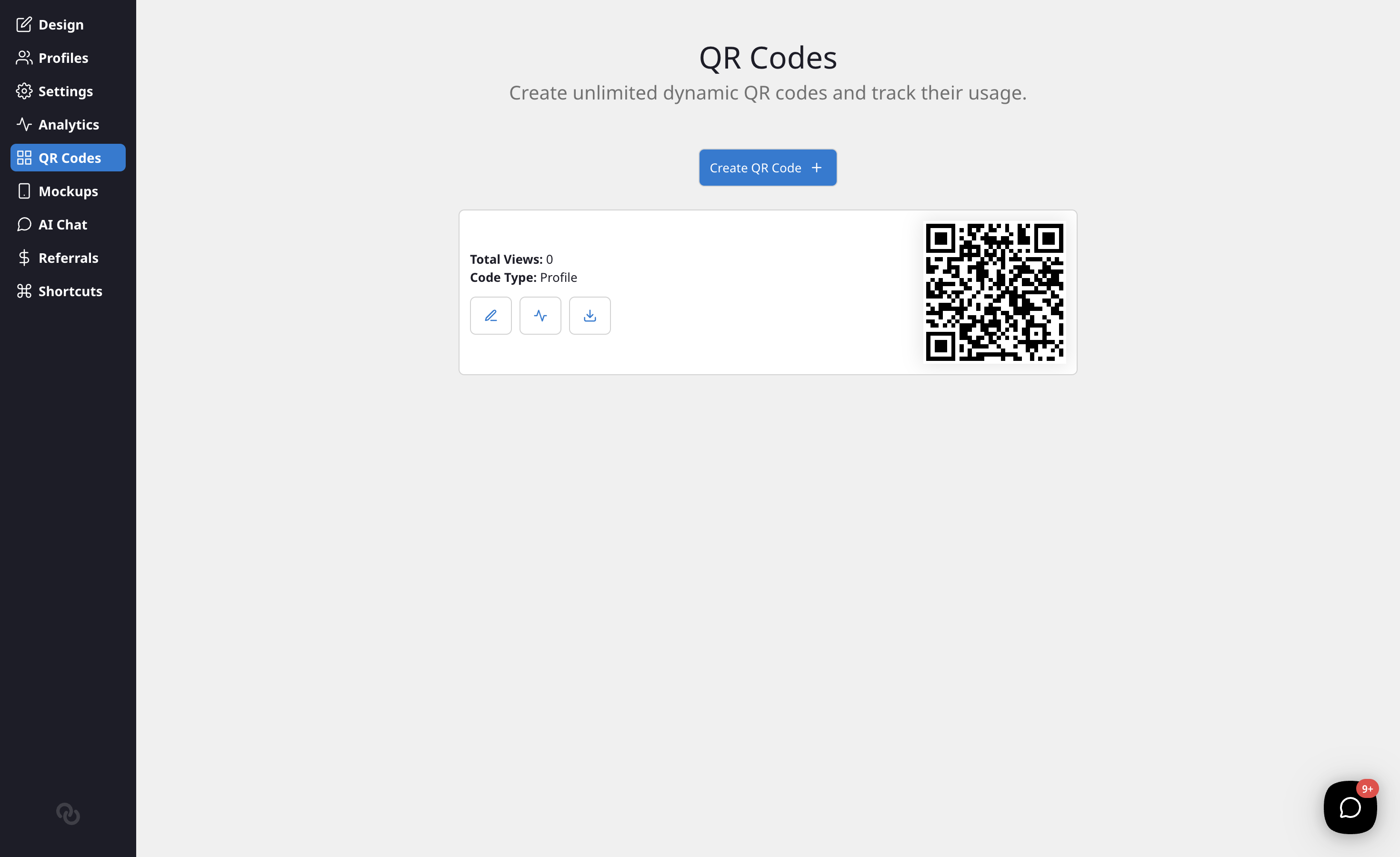
Every account comes with a primary QR code that links to your profile. It's always there and can't be deleted, but you can restyle it in QR Studio just like any other code. You can create as many additional QR codes as you need, and each one shows up in the QR Codes list with a live thumbnail, its name, and the date you created it.
Setting the destination
At the top of QR Studio, choose where your code sends people:
- My Liinks page — Opens your Liinks profile.
- A web link — Opens any custom URL you enter in the Destination URL field.
If your code is dynamic, you can change its destination at any time, even after it's printed: the printed code keeps working and simply points to the new URL. Static codes have their destination baked in and can't be repointed after they're created, and your account's primary code always points to your profile. See Tracking: static vs. dynamic codes below for the difference and which one you get.
Designing your code in QR Studio
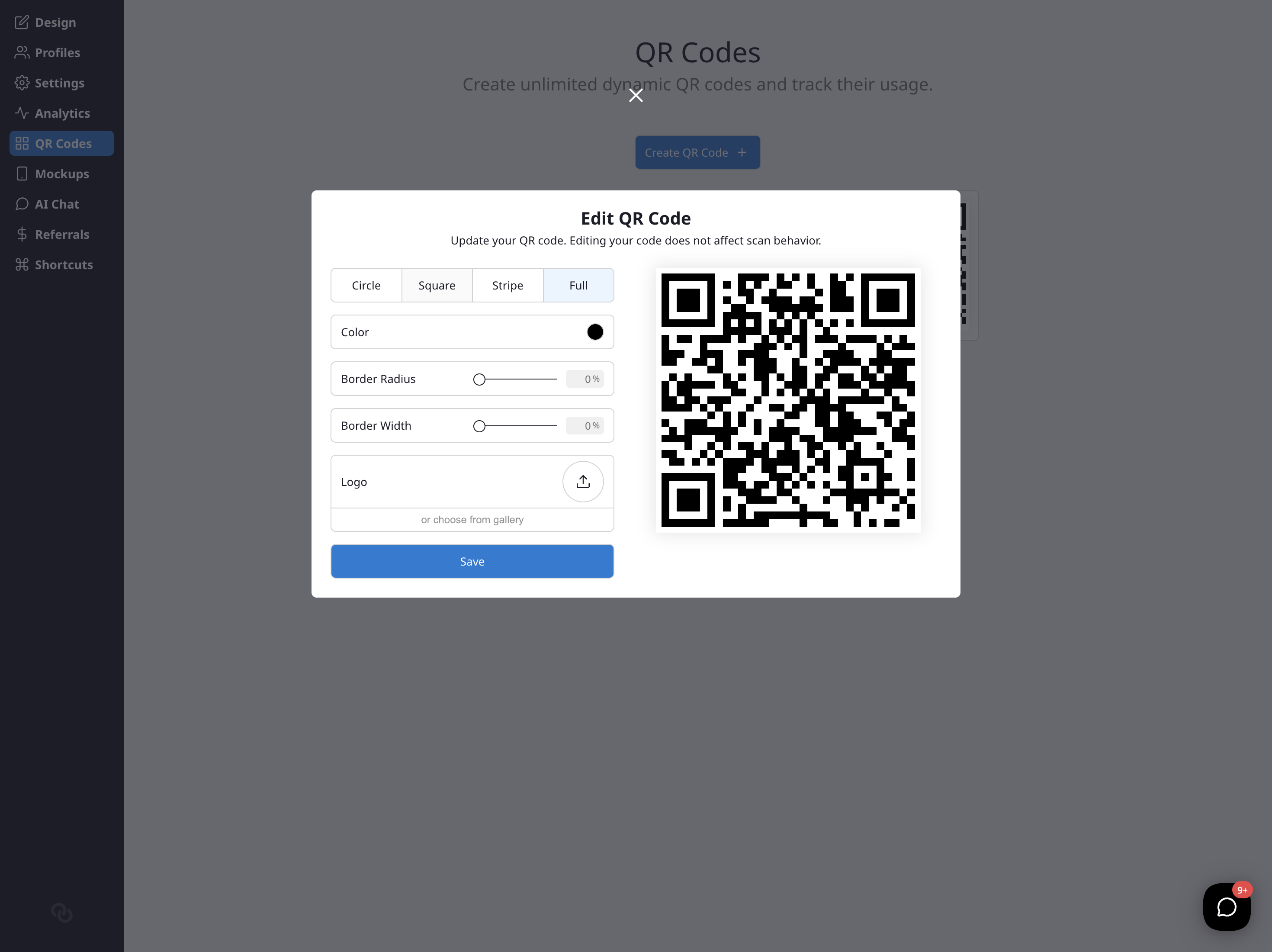
QR Studio shows a live preview of your code that updates as you make changes. Work through the styling sections in any order.
Start with a look
Pick one of the ready-made presets (Classic, Soft, Dots, Ink, Midnight, Sunset, Royal, Forest, Prism, Bold, and Halo) to restyle your whole code in one click, then tweak from there. Applying a preset changes the design but keeps your logo.
Match My Page
Click Match My Page to instantly pull your profile's theme colors and page logo into the code so it looks like it belongs with the rest of your Liinks page.
Pattern
Choose the shape of the code's dots (modules): Square, Dots, Rounded, Fluid, or Diamond.
Corner eyes
The three large squares in the corners are the "eyes" that scanners use to find your code. You can style the eye frame and eye pupil shapes independently (Square, Rounded, Circle, or Leaf), and optionally give the eyes their own color.
Colors
- Use a single Code color, or turn on Gradient to blend a Gradient start and Gradient end color at an angle you set.
- Turn on Transparent background to export a code with no background fill, so it sits directly on whatever surface you place it on. If you do, keep that surface light and leave clear space around the code so it stays scannable.
Logo
Add a Center logo to brand your code. You can adjust the Logo size and the amount of Clear space behind it. Liinks automatically raises the code's error correction when you add a logo so the hidden data can still be recovered.
Frame
Wrap your code in a frame with an optional call to action:
- Label card — A rounded card around the code with an optional Top label and Bottom label (for example, "Scan me" and "to connect").
- Round frame — A Flowcode-style ring around the code, with optional curved top and bottom labels.
You can set the frame and label colors to match your design.
Advanced
Under Advanced, you can set the Error correction level. Higher levels survive more print wear and support bigger logos, but make the code denser. Auto (recommended) uses Medium, or High when you've added a logo, so you usually don't need to touch this.
The scannability meter
As you design, QR Studio continuously checks whether your code will actually scan and shows a status:
- Scannable — Good to go.
- Scannable, with warnings — It should work, but there's something worth improving.
- Will not scan reliably — There's a problem that needs fixing before you export.
If there's an issue (not enough contrast, faint corner eyes, a logo that's too big, and so on), the meter explains it and offers a one-click fix. When the meter is red, exporting is blocked until you resolve the issue, so a broken code never leaves the studio.
Exporting your code
Click Export to download your code. Before the file downloads, Liinks renders your exact design and scans it to confirm it decodes to the right destination, so what you print is guaranteed to work.
- PNG image — Choose a resolution of 1024, 2048, or 4096 pixels. Great for screens, social, and most print. Transparent backgrounds are supported.
- SVG — A true vector file that stays crisp at any size, with your logo embedded. Best for professional print.
Restyling never breaks your codes
You can redesign a QR code as often as you like. Restyling changes only how the code looks, never where it points, so any codes you've already printed or shared keep working exactly as before.
If you created a code before QR Studio existed, open it and choose Style in QR Studio to bring it into the new editor with its style converted over as a starting point.
QR code analytics
Track how many times each dynamic QR code has been scanned (static codes aren't tracked — see below). Click the analytics icon next to any code to open its analytics, where you'll see the scan count over time plus a Scan breakdown showing:
- Scan locations — The countries your scans are coming from.
- Scan devices — Whether people scanned on mobile, desktop, or tablet.
Location and device data for scans started being collected on June 13, 2026, so these breakdowns fill in over time and won't include older scans.
Tracking: static vs. dynamic codes
Every QR code is one of two types, shown in the Tracking section of QR Studio:
- Dynamic — The code sends people through Liinks before forwarding them on. That means you can change the destination at any time without reprinting, and every scan is tracked (see analytics above). This is the default for subscribers.
- Static — The destination is baked straight into the code's pattern. A static code works forever, even without a subscription, but it can't be repointed after it's created and its scans aren't tracked.
Dynamic codes require an active subscription. If you're not subscribed, new codes are created as static so they still work, and QR Studio offers to switch on tracking when you subscribe. If you created your account before November 2023, you may have legacy access to dynamic codes.
Want a code you can repoint and keep free of a second redirect? Point a QR code at one of your Short Links — the printed pattern never changes while you repoint the short link behind it.
Pricing
Static QR codes are available to everyone and work forever. Dynamic codes (repointable destinations plus scan tracking) are included with every paid plan.