Your profile starts with a single page called Home, and you can add more — a Shop, an About, an Events page, whatever fits your content. Pages keep a content-rich profile organized: instead of one long scroll, visitors switch between focused sections.
Adding and managing pages
In the page editor, the current page is shown at the top of the left panel. Click Manage next to it to open the Manage Pages modal:
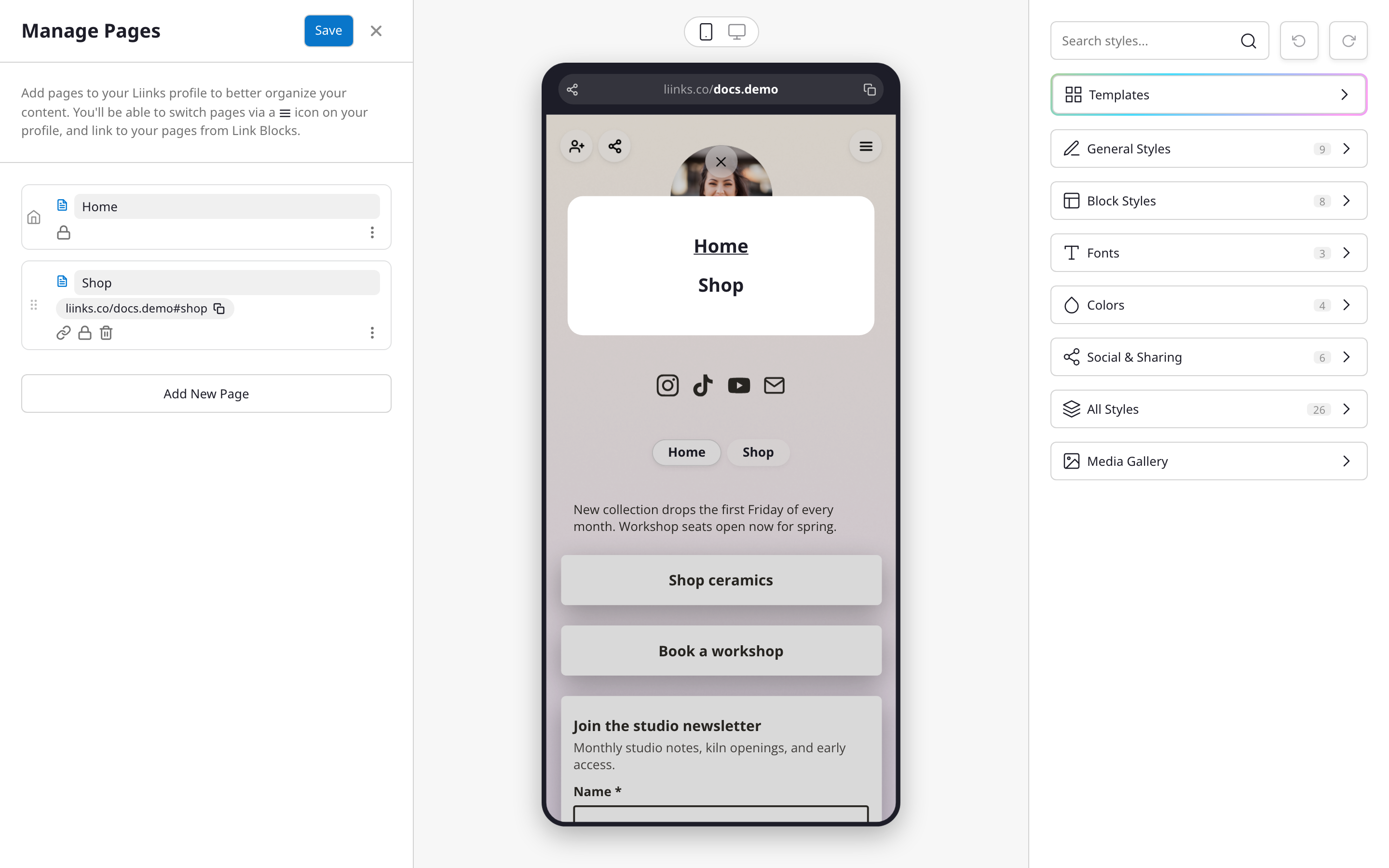
From here you can:
- Add New Page — create a page and give it a title (titles must be unique).
- Rename a page by editing its title.
- Reorder pages by dragging — the order controls how tabs appear on your profile.
- Delete a page you no longer need.
- Copy a page's direct link — every page beyond Home gets its own shareable URL, like
liinks.co/yourusername#shop, so you can link straight to a specific page from anywhere.
Adding content to a page
Each block lives on one page. Use the Page selector at the top of the left panel to switch which page you're editing — blocks you add go to the page you're currently on. You can also create a Page link block that jumps visitors from one page to another (see Block types).
What visitors see
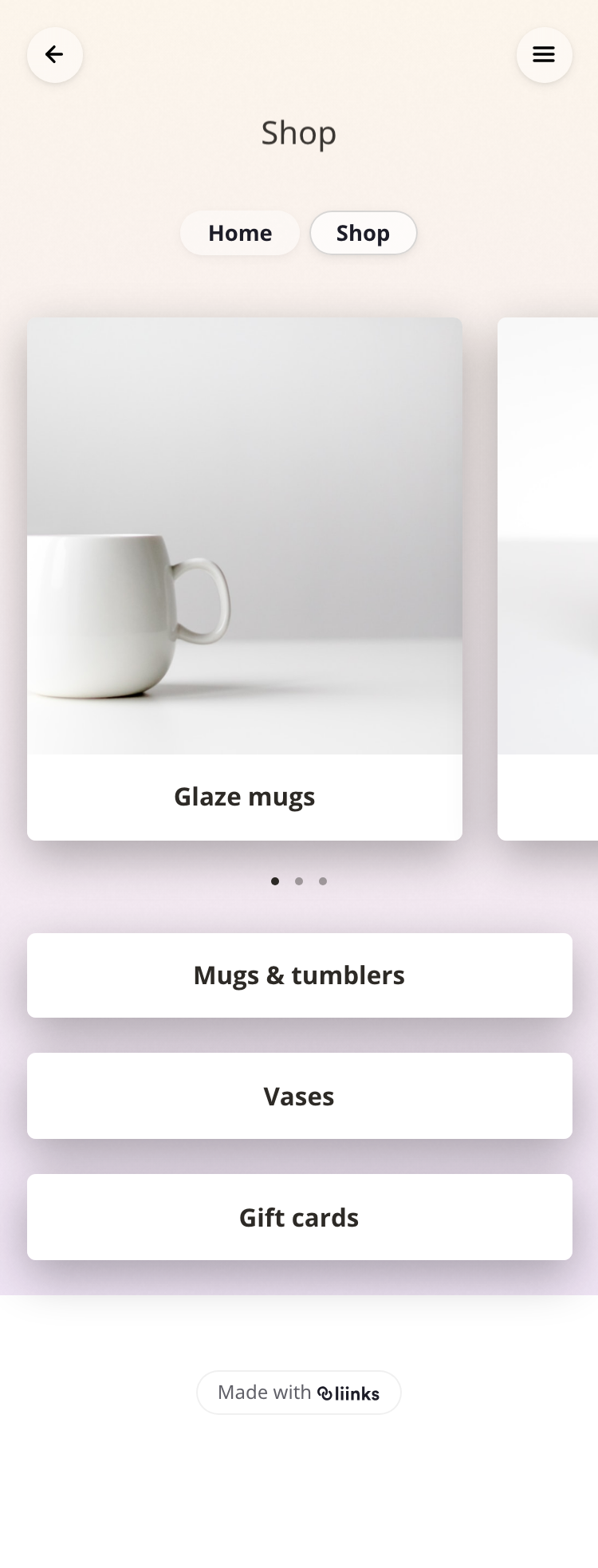
With Show Page Tabs enabled (in the Design panel under General Styles), your pages appear as a horizontal tab list near the top of your profile. With tabs disabled, visitors switch pages from the menu icon instead — useful if you want a minimal look.
Page switching is instant — visitors stay on your profile the whole time.
Protecting a page
Any page can sit behind a gate: a password, an email signup, or a confirmation screen that visitors pass before seeing the page's content. See Gating Links and Pages.