A single Liinks profile can hold more than one page. Pages are a great way to keep things tidy when you have a lot to share: you might keep your main links on your Home page and split the rest into pages like "Shop," "Music," or "Press." Visitors can move between your pages from the menu, and you can also show them as a row of tabs at the top of your profile.
Where to find your pages
Open the editor and look at the top of the Content sidebar. The Page selector shows which page you are currently editing (it starts on Home).
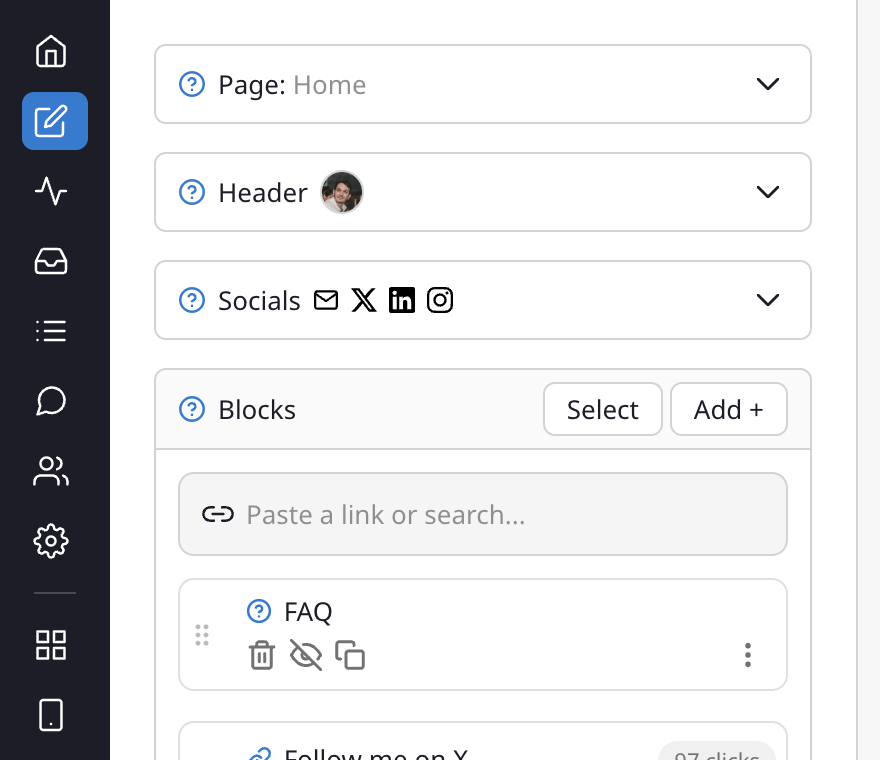
Everything below the selector: your Header, Socials, and Blocks, belongs to the page you have selected. Switching pages in the selector changes which page you are building.
You can also reach your pages straight from the live preview: hover over your header (your name, bio, or profile picture) to open its quick-edit menu, then choose Add a Page or Manage Pages.
Add a page
- In the editor, open the Page selector at the top of the Content sidebar.
- Choose Add New Page (you can also use the Add page button next to the selector if you don't have any extra pages yet).
- Give your new page a name and confirm.
Your new page starts empty, so you can add blocks, a header, and styles to it just like your Home page. Switch back to any page at any time using the Page selector.
Manage your pages
Once you have more than one page, a Manage button appears next to the Page selector. Click it to open the Manage Pages list, where every page is shown as its own card. From here you can:
- Reorder pages by dragging a card up or down using the handle on the left. The order you set here is the order visitors see in your menu and tabs. Your Home page always stays pinned to the top.
- Rename a page by clicking its name and typing a new one.
- Set a page URL so the page has its own readable web address.
- Add a gate to require a password or an email before a visitor can view that page. See Creating a gate.
- Delete a page you no longer need.
Each of these actions is available both as a quick icon on the card and in the three-dot menu on the right.
Show your pages as tabs
By default, visitors switch between pages using the menu icon on your profile. If you'd like your pages to be more visible, turn on Show Page Tabs in Design > General Styles to display them as a row of tabs at the top of your profile. This option appears once you have at least two pages. See Design options for more.