All Liinks users can see how many times each link was clicked on their page. To access your analytics, click Analytics in the left sidebar.
Performance snapshot
At the top of the analytics page, you'll see a row of snapshot cards that give you a quick summary of how your page is doing for the selected time period:
- Unique Visitors — How many individual people visited your page, with a percentage change compared to the previous period.
- Profile Views — How many times your page was viewed in total (one visitor can create several views), with a percentage change.
- Clicks — Total clicks across both your links and your social icons, with a percentage change.
- CTR — Your click-through rate: clicks measured against profile views, so you can see how engaging your page is regardless of how much traffic it gets.
- Top Link — Your most-clicked link for the period and its click count.
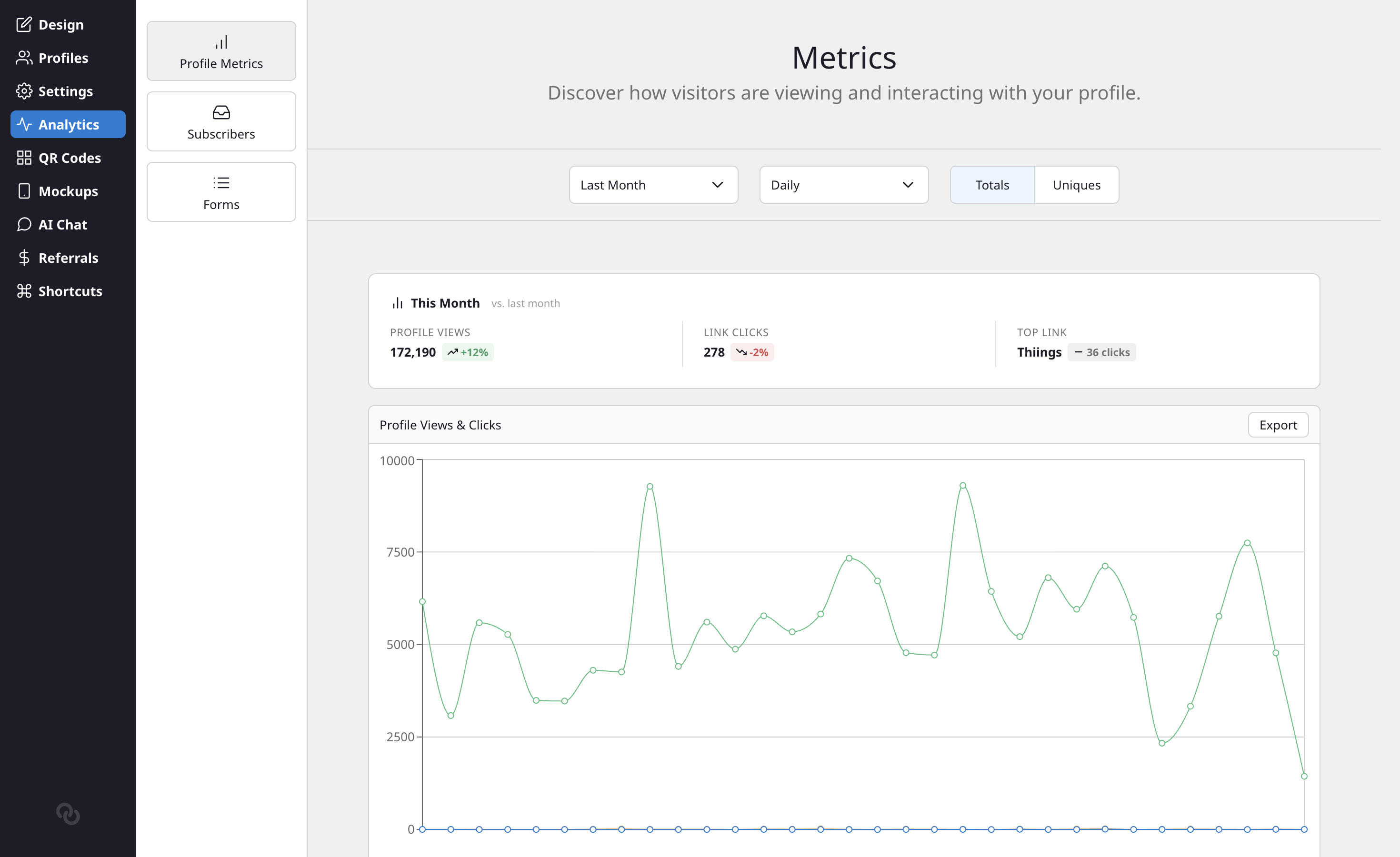
The snapshot automatically compares your current period to the previous one (e.g., this week vs. last week, or this month vs. last month), so you can quickly spot trends.
Time ranges
Use the dropdown at the top to change the time period:
- Today — Today so far vs. yesterday.
- This Week — This week vs. last week.
- This Month — This month vs. last month.
- This Year — This year vs. last year.
- Custom Range — Pick specific start and end dates (up to 2 years apart).
Charts
Below the snapshot, the Profile Views & Clicks chart shows three data series over time: Profile Views, Block Clicks, and Social Clicks. Use the interval picker to switch between Hourly, Daily, Weekly, or Monthly buckets (available options depend on the selected time range — the Today range buckets by hour, for example). You can also toggle between Totals and Uniques to see all visits or only unique visitors.
Click Export to download your analytics data.
Audience breakdowns
Below the chart, the Audience section breaks your visitors down by where they came from and what they used to view your page. A world map sits at the top of this section, shading each country by how many visitors it sent you, with the ranked breakdowns listed below:
- Locations — The countries your visitors are browsing from.
- Traffic sources — How people reached your page, grouped into channels like Social, Search, Direct, Referral, and QR.
- Top referrers — The specific sites and apps sending you traffic (for example, Instagram, Google, or TikTok).
- Devices — Whether visitors are on mobile, desktop, or tablet.
- Browsers — The browsers your visitors use.
- Campaigns — Traffic tagged with UTM campaign links, so you can measure specific promotions.
Each breakdown respects the time range and updates as you change it.
Filtering by a breakdown
Click any row in a breakdown (or a country on the map) to filter the whole dashboard by that value: the snapshot cards, chart, and every other breakdown re-scope to just those visitors. Active filters appear as removable chips above the snapshot cards, so you can stack several (for example, Mobile visitors from Instagram) and clear them one at a time. This makes it easy to answer questions like "how many of my QR-code visitors were on mobile?" without leaving the page.
Note: Location, traffic source, device, and campaign data started being collected on June 13, 2026. Visits before that date aren't included, so these breakdowns are sparse at first and fill in over the following days. If your profile is older than that, you'll see a short banner reminding you of this until enough new data has accumulated.
Link-level analytics
Each link on your page tracks its own click count. Open the Link Analytics panel from a link's action menu to see a clicks-over-time chart and a sortable table of all your links with their click totals.
You can also set a Click Goal on any URL link to show a live progress bar on your public profile — great for pre-orders, sign-ups, or fundraising. See Click Goal for details.