The Click Goal feature lets you attach a click target to any URL link on your page. A live progress bar appears under the link on your public profile so visitors can watch momentum build — perfect for pre-orders, sign-ups, fundraising, or any countable goal.
How to set a click goal
- In your profile editor, find the URL link you want to add a goal to.
- Open the link's action menu (the gear icon on the right side of the link card).
- Select Click Goal.
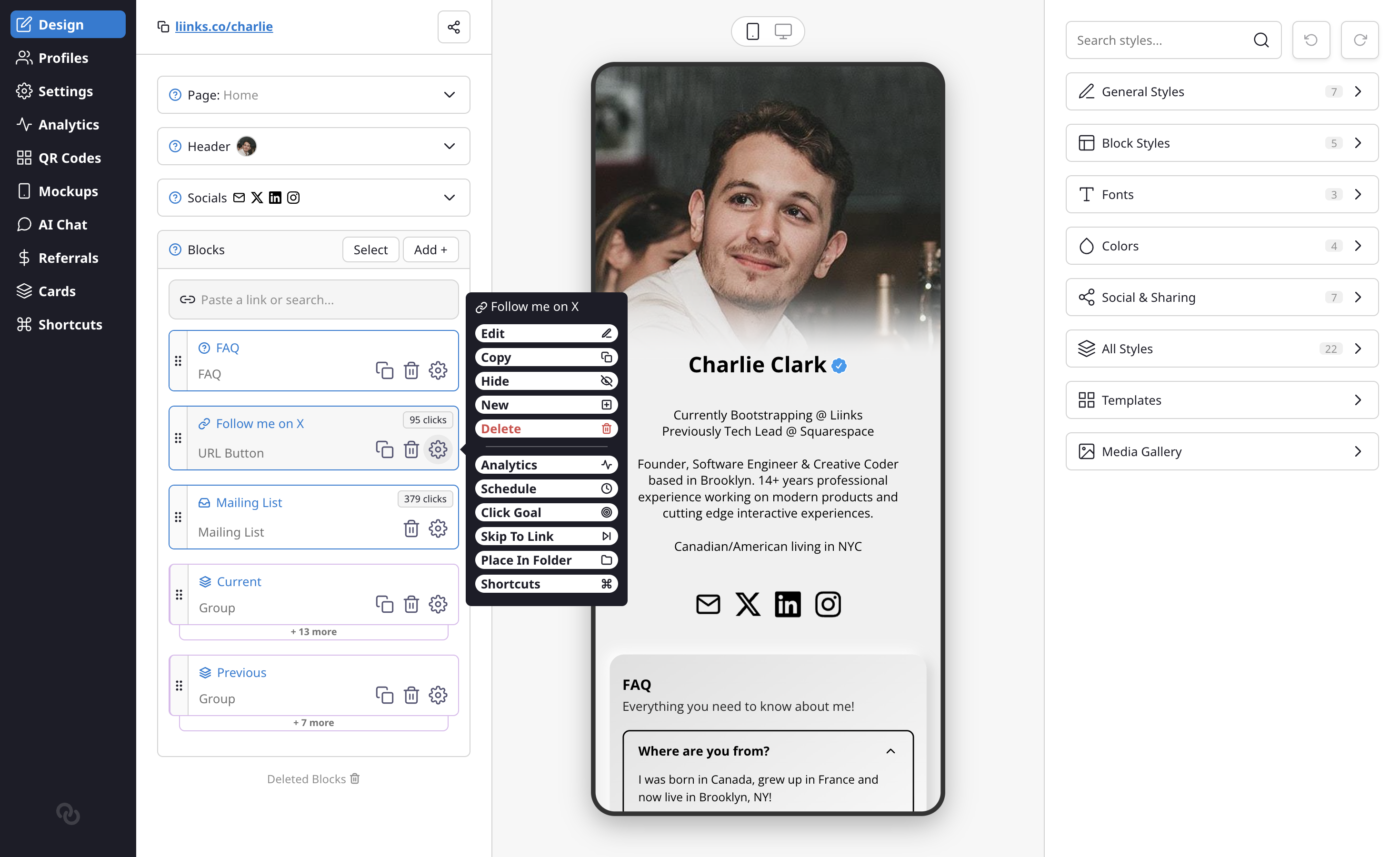
- Toggle Show Click Goal on.
- Enter your target number of clicks in the Goal (clicks) field.
- Click Update to save.
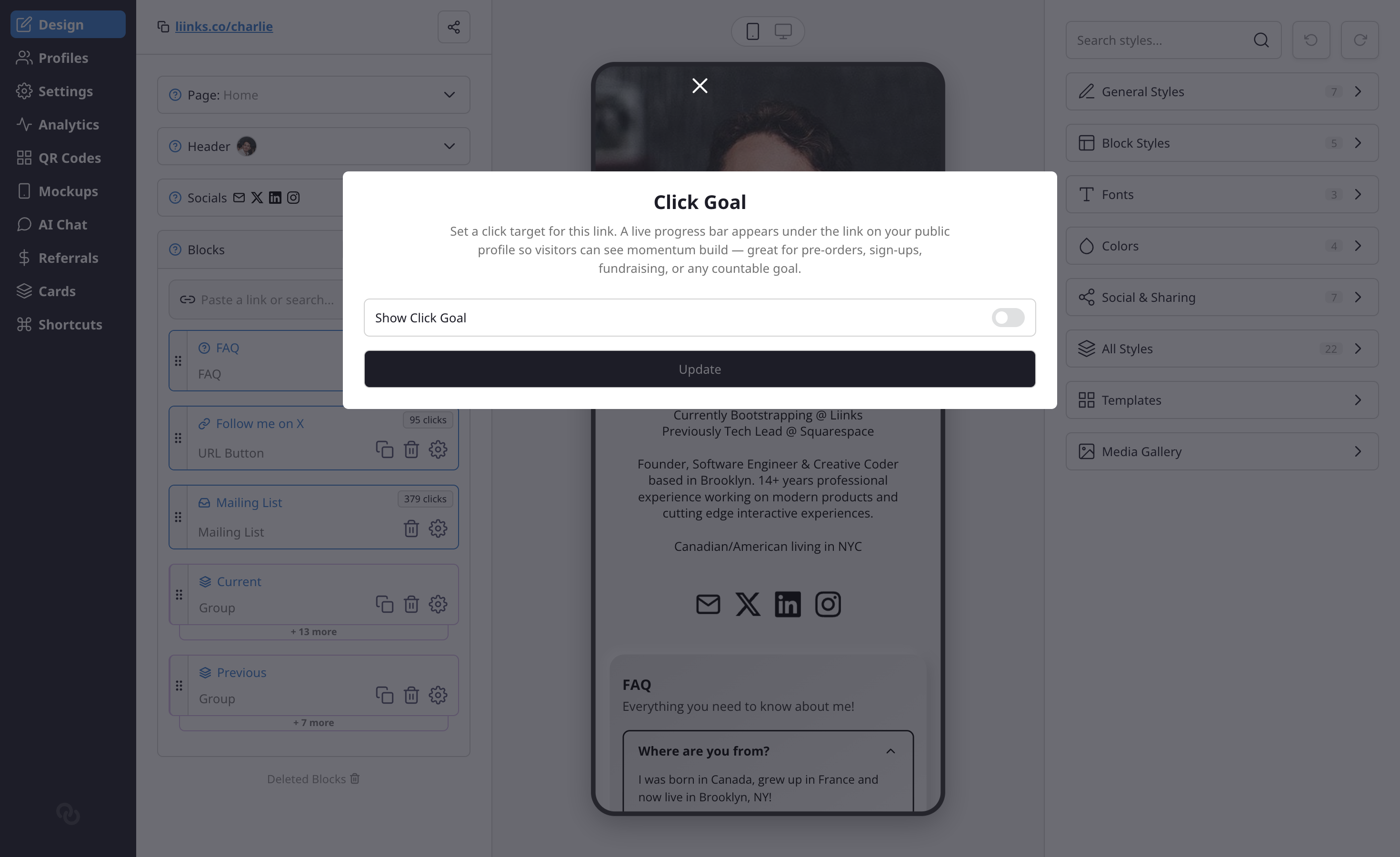
The modal also shows your current progress — how many clicks the link has received so far and what percentage of the goal that represents.
How it looks for visitors
On your public profile, links with an active click goal display a slim progress bar underneath the link. The bar shows the current click count, the goal, and a percentage. As visitors click the link, the bar fills up in real time. The progress bar inherits your page's text color, so it blends naturally with your design.
Removing a click goal
To remove a click goal, open the Click Goal modal from the link's action menu and toggle Show Click Goal off, then click Update. The progress bar disappears from your public profile immediately.
Tips
- Start with a realistic goal that's slightly above your current click pace — it gives visitors a sense that the goal is achievable.
- Pair a click goal with a compelling call-to-action in the link title, like "Help us reach 500 sign-ups!"
- Click goals are only available on URL link types (not email, file, image, or page links).