What is a Folder Block?
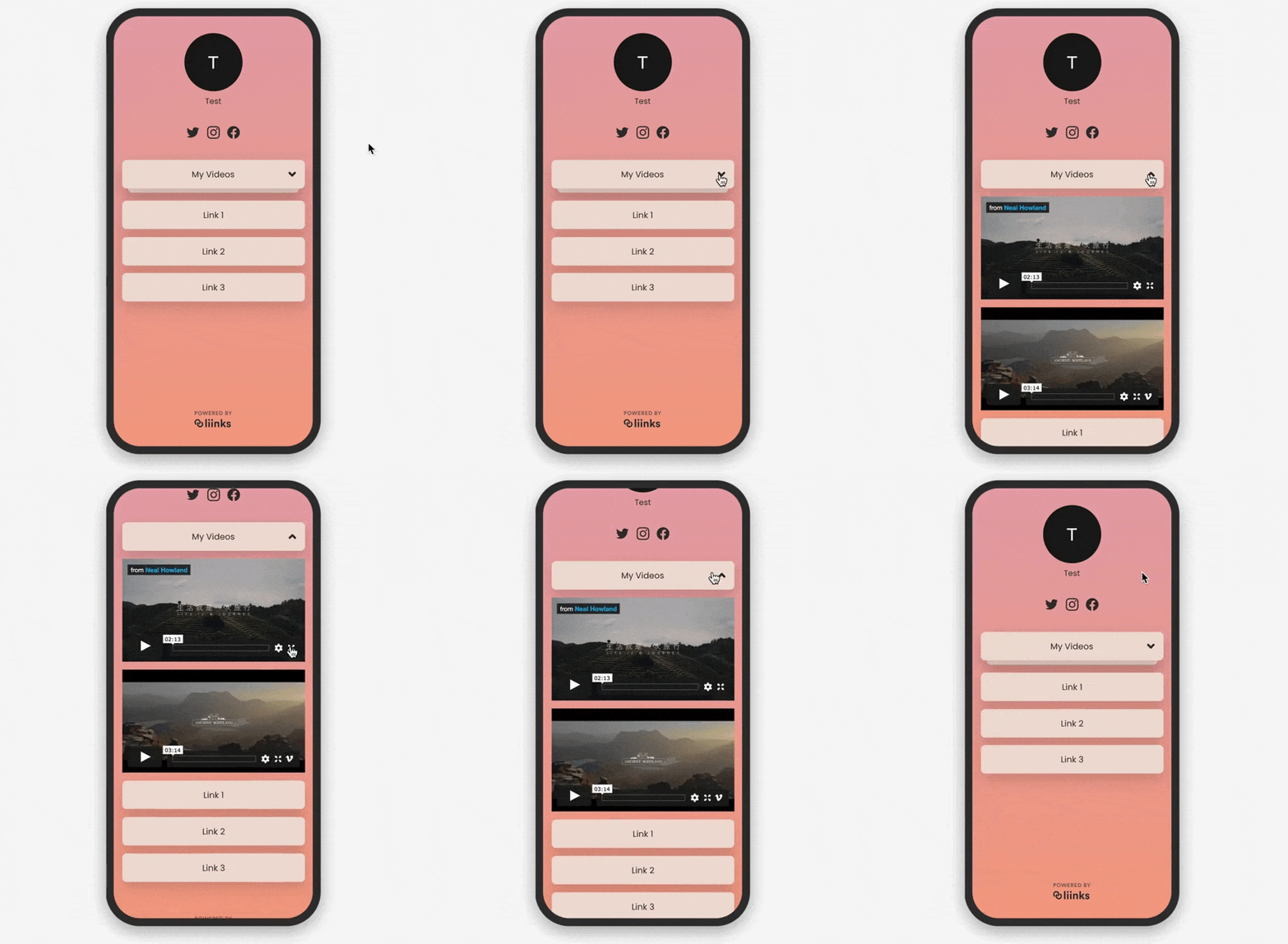
Folder blocks let you organize multiple blocks into collapsible groups. On your profile, visitors see a folder that they can expand and collapse to browse grouped content.
In your admin sidebar, blocks inside a folder are visually nested so you can see the structure at a glance.
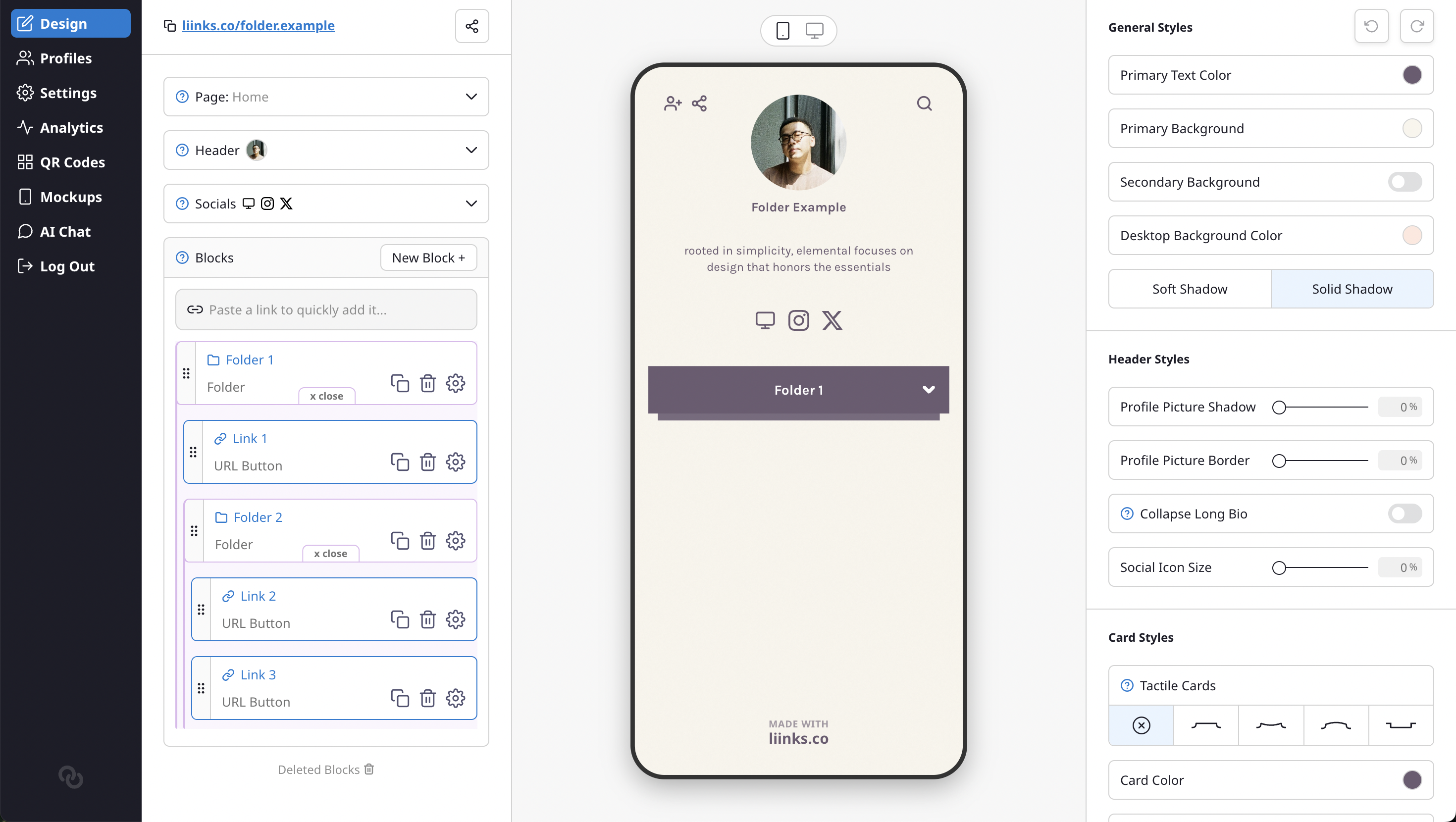
Adding Blocks to a Folder
There are two ways to add blocks to a folder:
- Drag and drop — Drag any block over a folder to drop it inside. You can also drag a block left to remove it from a folder.
- Add block button — Click the + button inside an expanded folder to create a new block directly within it.
Nested Folders
Folders can be nested inside other folders, letting you create multi-level organization. For example, you could have a "Resources" folder containing a "Videos" folder and a "Articles" folder, each with their own blocks inside.
To nest a folder, simply drag one folder block into another.
Folder vs. Organization Only
When you create or edit a folder block, you can choose between two modes:
- Folder — Shows as a collapsible folder on your profile. Visitors can expand and collapse it to see the blocks inside.
- Organization Only — Groups blocks in your admin sidebar only. The grouped blocks appear as normal blocks on your profile without any folder wrapper. This is useful for keeping your sidebar tidy without affecting how visitors see your page.
Search and Folders
When visitors use the search bar on your profile, blocks inside folders are included in the results. If a search matches a block inside a collapsed folder, the folder automatically expands to reveal the matching block. This means your audience can always find content even if it's nested several levels deep.
In the admin sidebar, block search also works across folders — matching blocks are surfaced with their parent folders expanded so you can quickly locate them.
Reordering Blocks
You can reorder blocks within a folder by dragging them, just like root-level blocks. To move a block out of a folder, drag it to the left until it pops out of the folder container.