If your audience speaks a language other than English, you can set a Page Language so the built-in buttons and labels on your public page appear in their language. This also sets your page's language for screen readers and search engines.
Where to find it
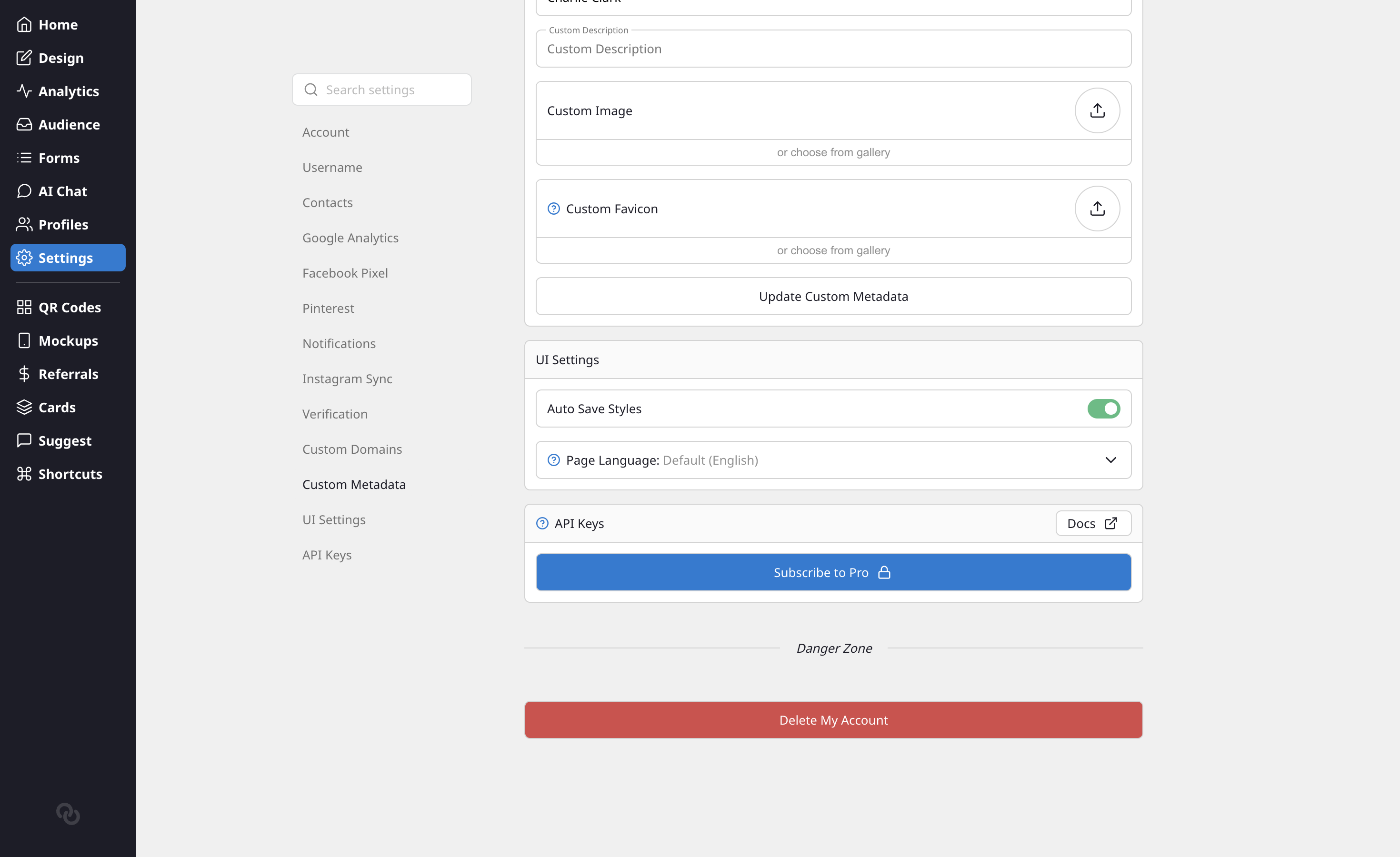
- Go to the Settings tab in your admin dashboard.
- Open the UI Settings section.
- Find the Page Language dropdown and pick the language you want.
Your choice saves automatically and the preview updates right away.
What gets translated
Setting a page language translates the text that Liinks adds to your page automatically, including:
- The Share button and the default "Check out this page" share message
- The Add Contact / Tap & Hold to Add button and the "Save as a contact" prompt
- The View QR Code button
- The search box placeholder and the "no results found" message
- The Verified Profile badge and its description
The page's HTML lang attribute is also set to your chosen language, which helps screen readers pronounce your page correctly and gives search engines a clearer signal about who your page is for.
What does not get translated
Your own content stays exactly as you wrote it. Liinks does not translate your link titles, descriptions, bio, profile name, or any custom text you have added. If you want those in another language, edit them yourself.
Available languages
You can choose from 30 languages, including Spanish, French, German, Portuguese, Italian, Dutch, Japanese, Korean, Chinese, Arabic, Hindi, Russian, Turkish, Polish, Swedish, and many more. Each option is shown in its own native name so it is easy to recognize. Leave the picker on English to keep the default text.