The Command Menu is a fast, keyboard-driven way to navigate your Liinks dashboard and trigger actions — without having to click through menus. Think of it like a search bar for your entire account.
Opening the Command Menu
Press Cmd+K on Mac or Ctrl+K on Windows/Linux to open the Command Menu from anywhere in the dashboard.
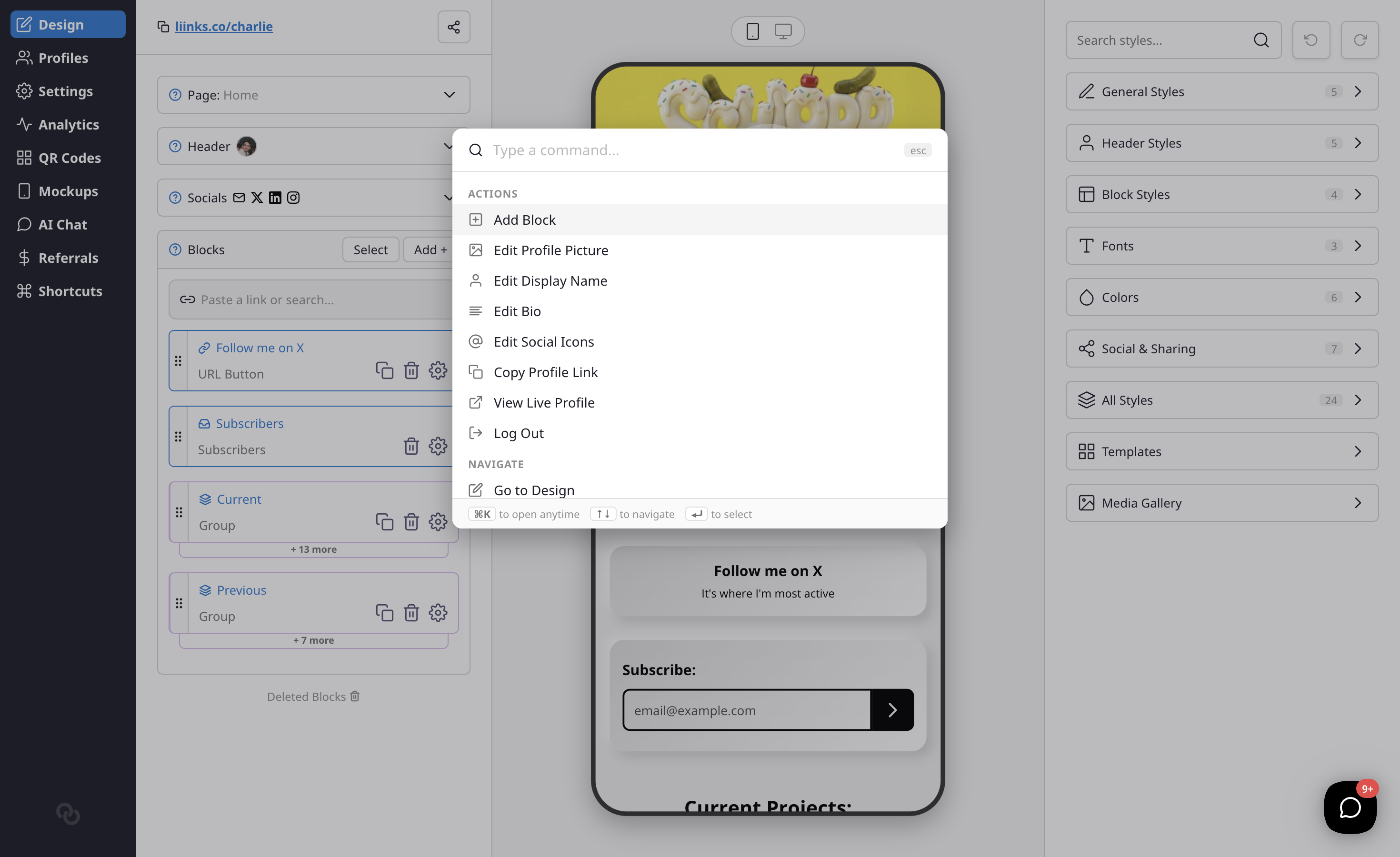
A small popup will appear with a search field and a list of available commands.
Searching for commands
Start typing to filter the list. You can search by name or keyword — for example, typing "analytics" will surface the "Go to Analytics" command, and typing "add" will show the Add Block action.
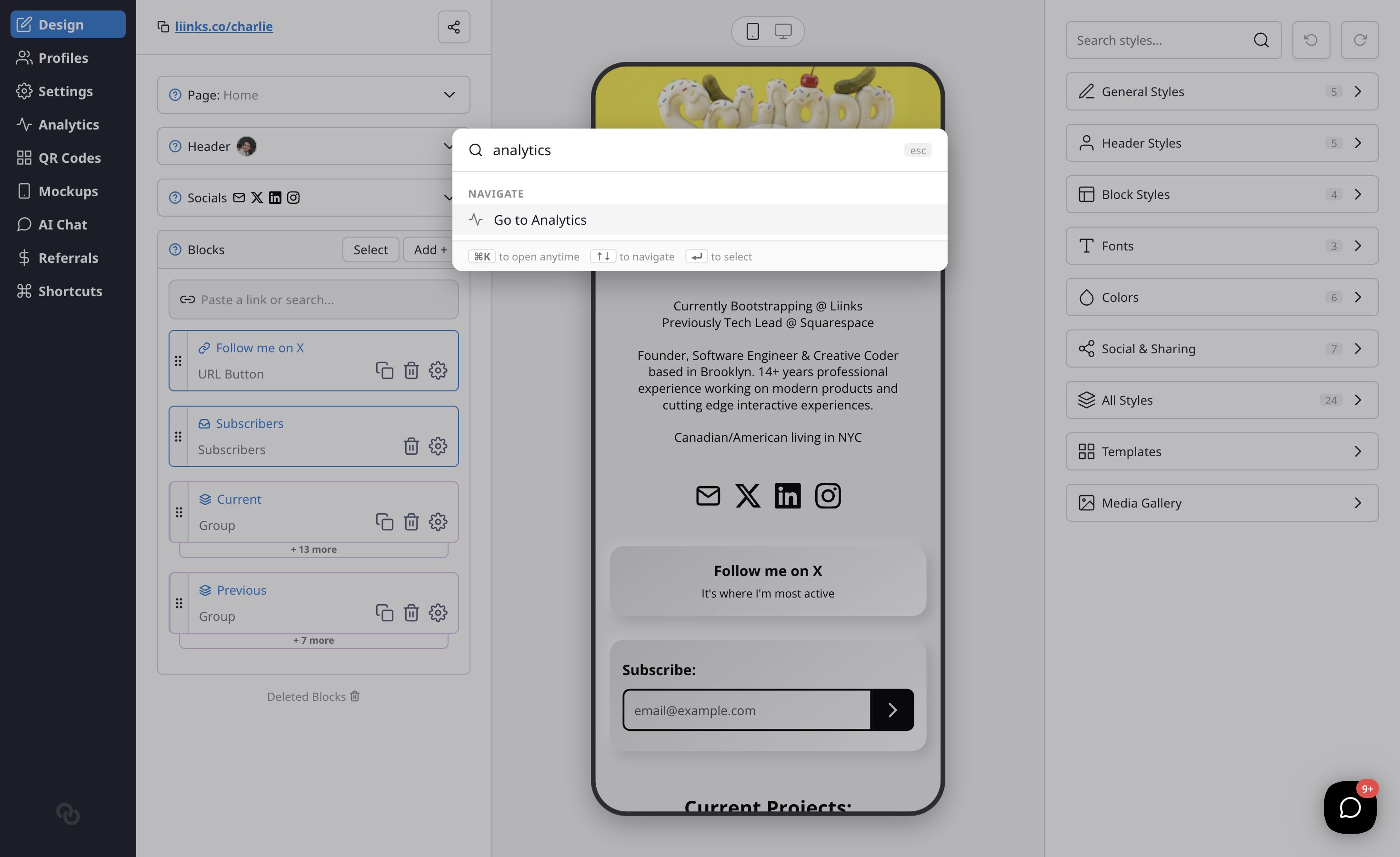
Use the arrow keys to move through the results and press Enter to run the highlighted command. Press Escape to close the menu without doing anything.
What you can do
The Command Menu is organized into two sections:
Actions — Quick actions that trigger something immediately:
- Add Block — Open the block picker to add a new block to your page
- Edit Profile Picture — Open the profile picture uploader
- Edit Display Name — Jump to the display name field
- Edit Bio — Jump to the bio field
- Edit Social Icons — Open the social icons editor
- Copy Profile Link — Copy your public profile URL to the clipboard
- View Live Profile — Open your live profile in a new tab
- Log Out — Sign out of your account
Navigate — Jump to any section of your dashboard:
- Design, Analytics, Settings, QR Codes, Mockups, AI Chat, Profiles, Billing, Referrals, and more
Some commands are only shown if they're relevant to your account. For example, the Subscribe command only appears for accounts without an active subscription.
Jumping straight to a setting
The Command Menu can take you to a specific section of your Settings, not just the Settings page as a whole. As soon as you start typing, matching settings sections appear under a Settings group. For example, typing "domain" surfaces the Custom Domains section, and typing "pixel" surfaces Facebook Pixel.
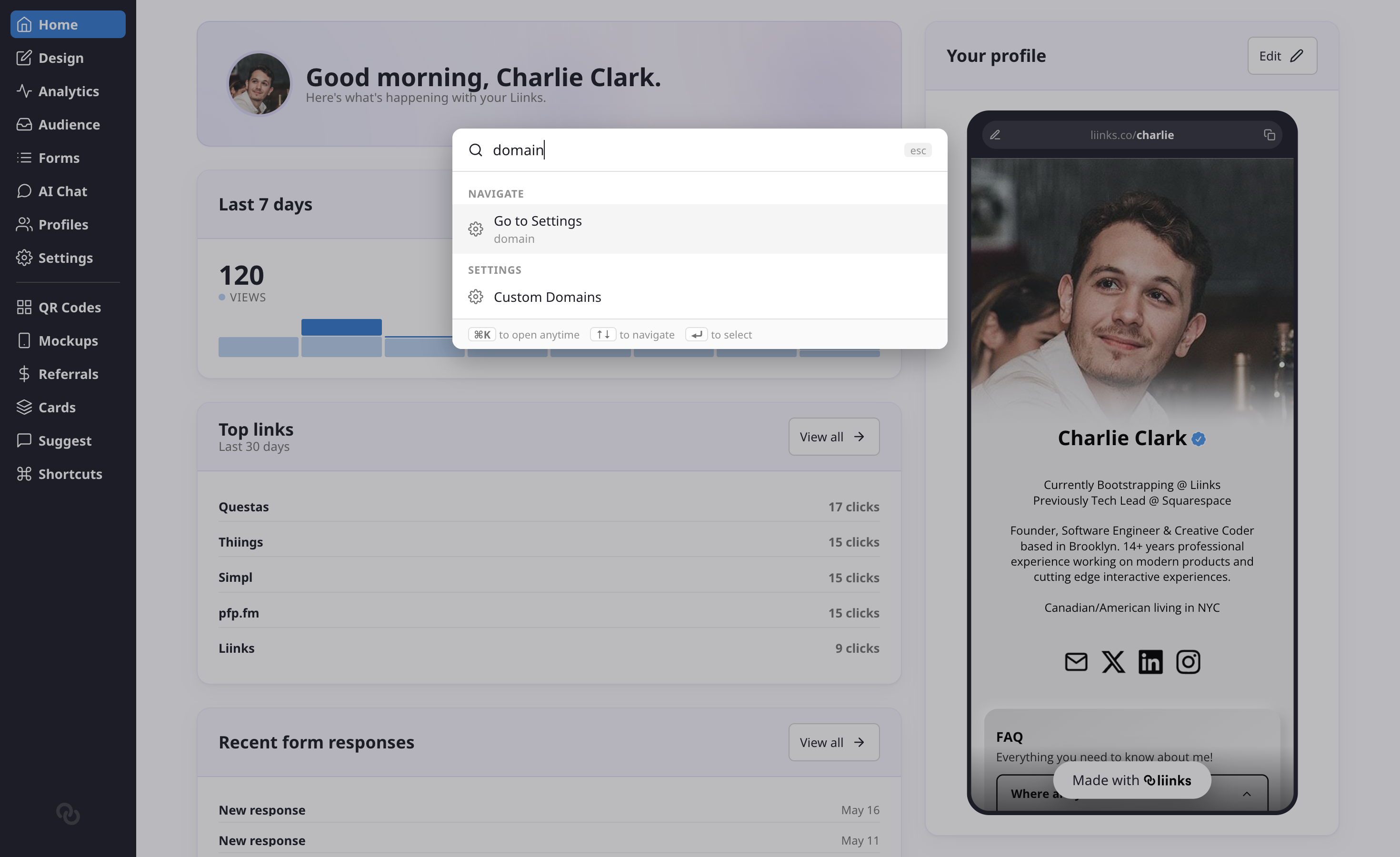
Selecting one drops you on the Settings page and scrolls straight to that section, so you don't have to hunt for it. Settings results only appear once you've typed something, keeping the menu focused on navigation and actions when it first opens.
Searching within Settings
The Settings page has its own search box too, right above the list of sections in the left sidebar. It's handy when you're already on the Settings page and want to filter the sidebar down rather than open the full Command Menu.
Type into the Search settings box and the sidebar narrows to just the sections that match your search. You can search by section name or by related keyword — for example, typing "tracking" filters down to Google Analytics and Facebook Pixel, with the matched keyword shown beneath each one.
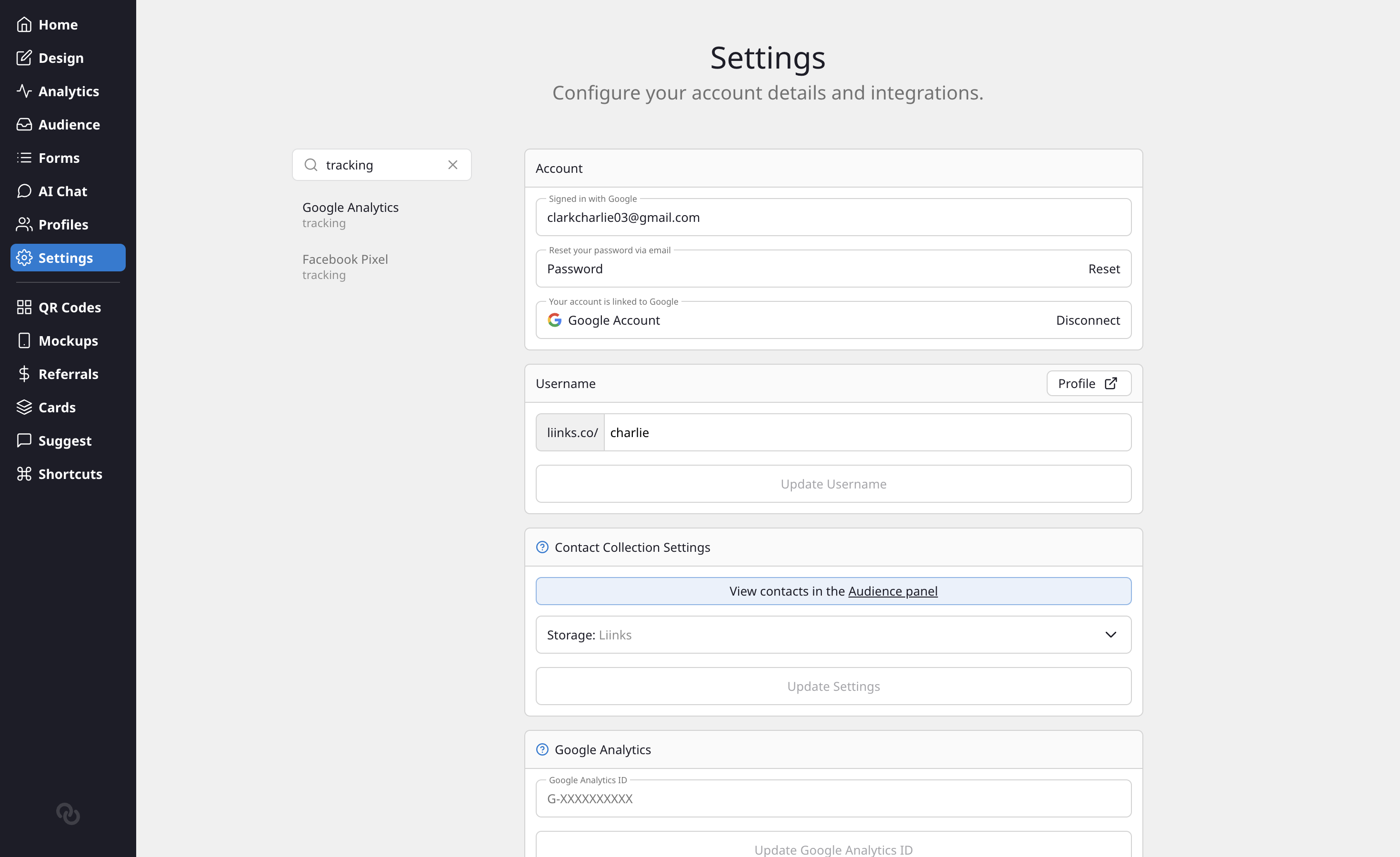
Click a result to scroll to that section, or clear the box with the X to bring the full list back. If nothing matches your search, you'll see a No matches message.
Tips
- The Command Menu works from any page in the dashboard — you don't need to navigate somewhere first.
- If an action requires you to be on the Design page (like editing your bio), the menu will automatically take you there first.