Announcements let you put one time-sensitive message in front of every visitor: a sale, a launch, a schedule change, a new drop. Each profile has a single announcement that shows on every visit until the visitor dismisses it.
Creating an announcement
In the page editor, click Announce in the left panel (between Socials and Blocks). The announcement editor opens with a live preview:
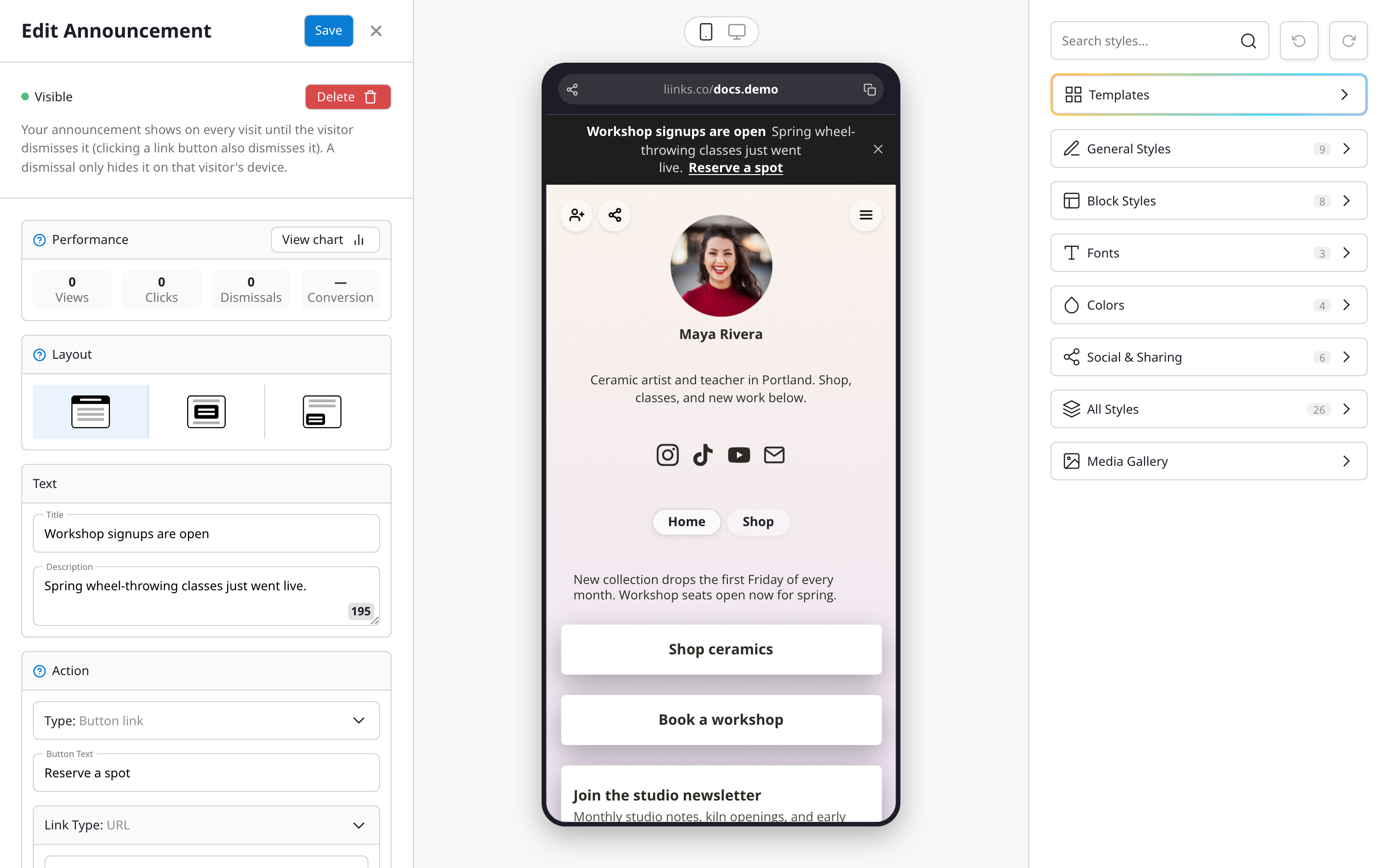
An announcement has three parts:
- Layout: how it appears on your profile.
- Banner: a bar across the top of your profile.
- Popup: a fullscreen message visitors see when they arrive.
- Card: a card in the bottom corner of the screen.
- Text: a title and an optional description.
- Action: an optional button that opens a link, or a form to collect responses. For the popup layout the form shows inline; for the banner and card layouts the button opens the form.
You can also add an image (popup and card layouts), pick custom colors, and schedule the announcement to appear and disappear at specific dates and times.
What visitors see
The announcement shows on every visit until the visitor dismisses it with the close button. Clicking the announcement's button also dismisses it. A dismissal only hides the announcement on that visitor's device.
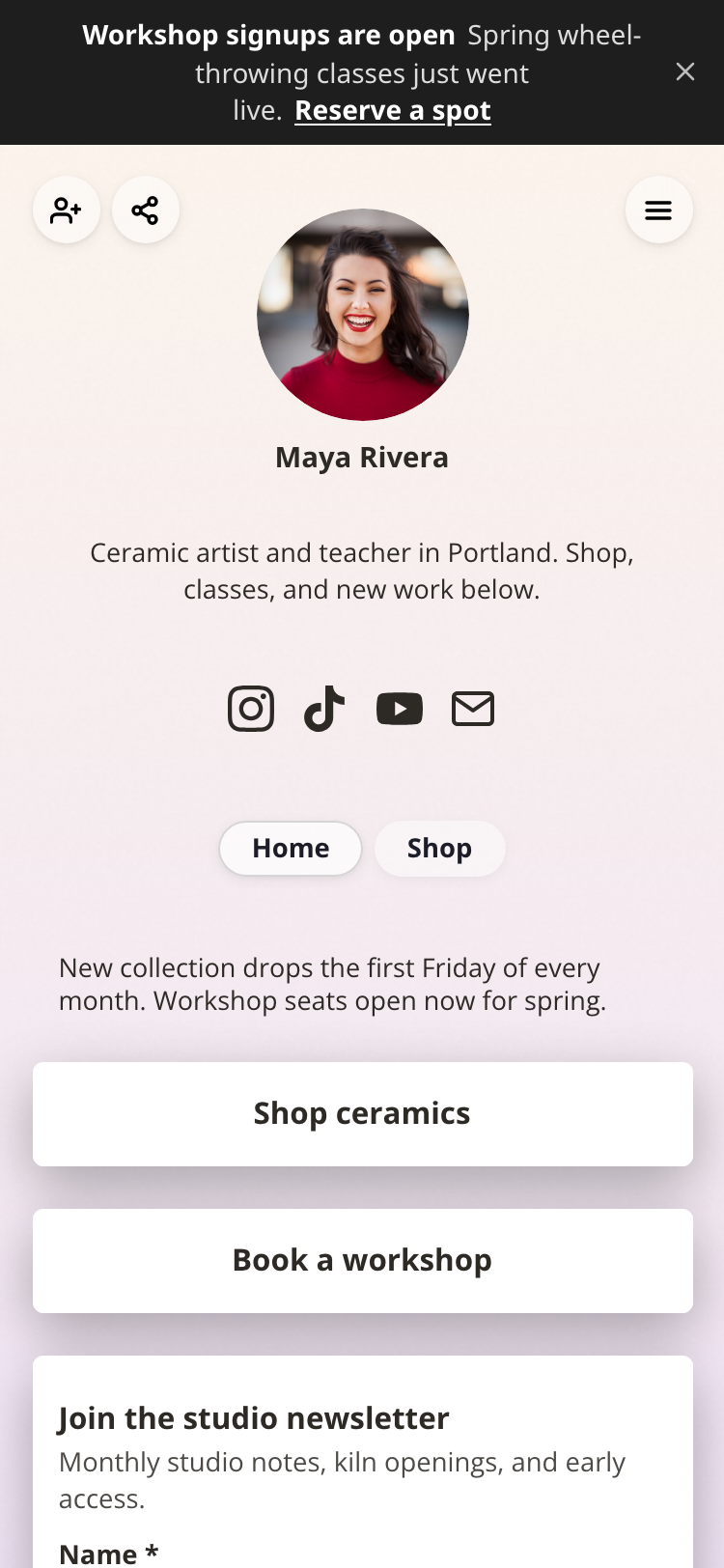
Editing the text or colors of an existing announcement does not bring it back for visitors who already dismissed it. To re-show an announcement to everyone, delete it and create a new one.
Performance
The editor's Performance section tracks how the announcement is doing: views, button clicks, dismissals, and the view-to-click conversion rate. Click View chart to see how each metric trends over time.
Previewing
The announcement stays out of the editor's device preview by default so it doesn't cover your page while you work. It appears in the preview while the announcement editor is open, or whenever you switch on the eye toggle next to the Announce row.